EasyChat Admin
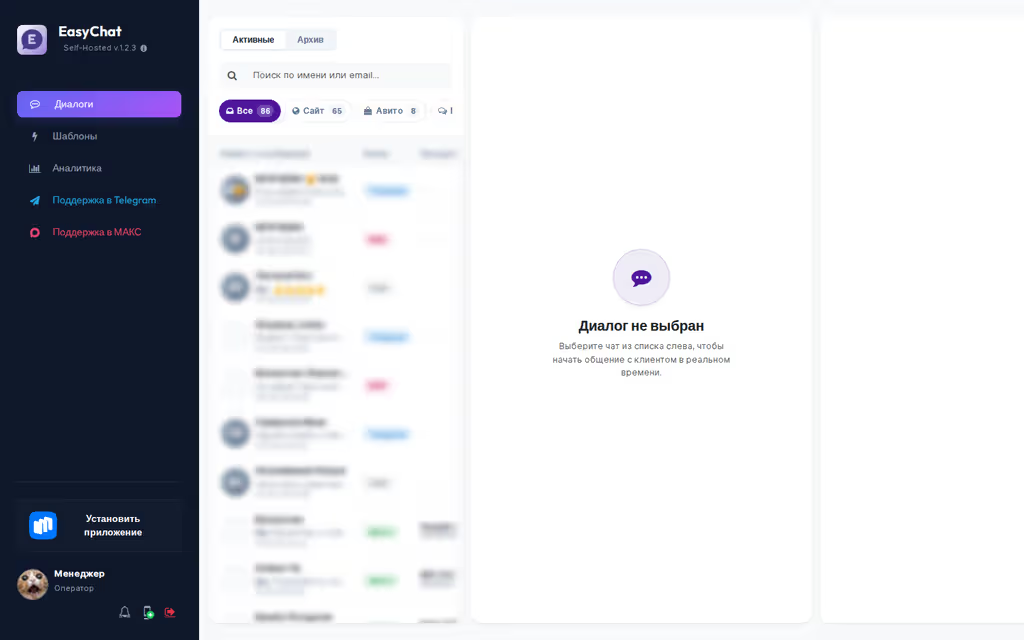
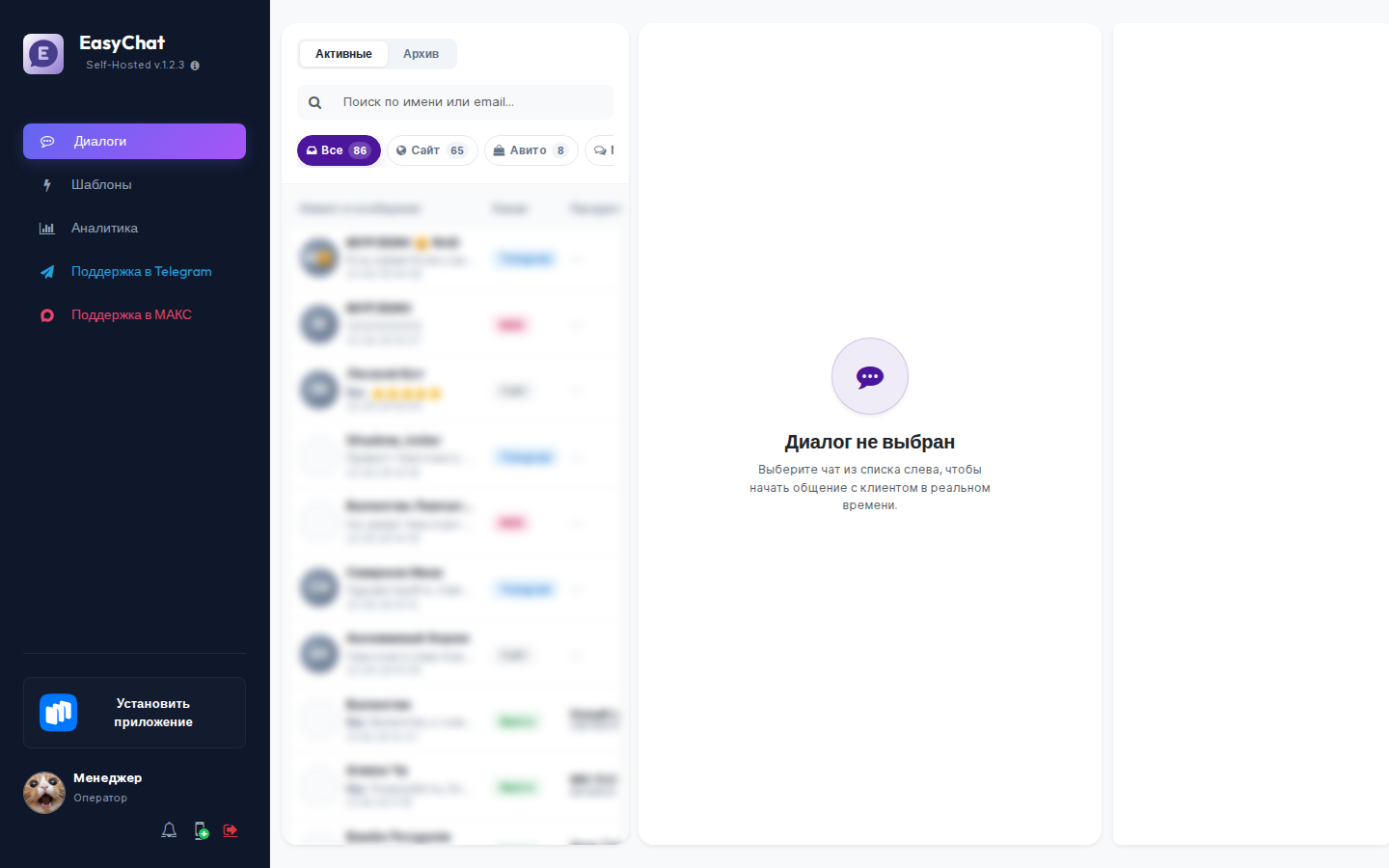
The EasyChat admin panel is the workspace for administrators and operators. Use it to answer visitors, connect messengers, configure the website widget, manage the team and check notifications.
EasyChat automatically tells search engines not to show the admin panel, the widget, service pages, local APIs or central service APIs in search results. This reduces the chance of a login page or service response appearing in search, but it does not replace access control. Give every operator a separate account, disable former team members and never publish passwords or QR codes. Even an incorrect or retired URL inside the admin area returns a proper “page not found” response with a separate no-index instruction.
Moving between admin sections now feels smoother: the sidebar stays in place and only the central workspace changes. Settings, integrations, operators, the knowledge base and quick replies open without the feel of a full page reload. If a browser or hosting environment cannot use this mode, the same links still work as normal full pages.
Working sections share one adaptive grid: headings, tabs and primary cards use the same alignment in Settings, Operators, Notifications and Integrations. On wide displays the workspace stays centred, uses the useful width and avoids a large accidental gap on the trailing side; phones retain safe gutters. Only Conversations uses the full available width, where the inbox and message workspace benefit from the extra room.
When you hover a nearby section, EasyChat quietly prepares it in advance, so the next click often opens almost instantly. The sidebar stays familiar and quiet: conversations show only the unread counter, and notifications show the push limit state only when it matters. If you open Conversations after this preparation, the inbox still starts normally: no stuck loading indicator and no unnecessary full admin reload.
The EasyChat mark and name at the top of the menu form one large link to the official website. It opens in a new tab, so the current conversation and draft stay in place. The nearby version label remains a separate link to the release notes.
What You Can Do
- Conversations - handle messages from the website, MAX, Telegram, VK, Avito, Youla and other channels.
- Settings - change the widget appearance, language, greeting, notifications and integrations.
- Operators - manage team members, roles, Android access and SMS scenarios.
- Quick replies - prepare answers for common questions.
- Knowledge base - add materials that help the AI assistant and operators.
- Notifications - check Android, WebPush and the free push limit.
- Ask EasyChat - verified documentation help without reloading the current workspace. How to use it.
On the first launch from a CMS, EasyChat separately offers starter AI tokens and a Start the AI consultant switch. This is visible consent rather than a hidden default, and it can be turned off before continuing. AI replies start only when the option stays enabled and a key was actually issued. Fast catalog search is prepared automatically for a detected store CMS; enhanced embedding search still requires a separate action in Settings.
Catalog Search
Under Settings → Catalog and search, EasyChat verifies the product catalog connection for OpenCart, WooCommerce, 1C-Bitrix or Webasyst. Fast search reads the current store data immediately and does not wait for Cron. The AI searches product names, models and SKUs, then receives the current price and availability before replying.
Three availability policies are available:
- Smart balance is the recommended default. An unavailable item is shown only for an exact model, SKU/article or full-name match, while recommendations include only products that can be bought now or ordered;
- In stock only hides preorder and unavailable products;
- All active products includes every published, search-visible product while preserving its real availability status. Draft, disabled, hidden and not-yet-published products remain excluded.
Preorder status comes from the stock rules of the host CMS; the AI does not guess it. For variable products, an exact variation SKU uses that variation’s own stock and price. Another colour or size cannot make an unavailable variant look available.
When AI suggests a product, its title becomes the clickable link in MAX, Telegram, the widget, web admin and Android. A long technical address does not take over the message. If a channel cannot place a link behind text, EasyChat uses a clear fallback: Product title: address. The first reply uses the store’s local URL data, while redirects and canonical URLs are verified in the background without delaying the customer reply.
Preview as a customer runs without spending AI tokens. You can switch between an exact-product request and a recommendation request. Tell the customer the exact quantity is off by default. In most stores, saying “in stock”, “available to order” or “out of stock” is safer than promising a count that may change during checkout.
The Help customers find products switch is the administrator’s final choice. Turning it off stops fast and enhanced search, stops background indexing, and EasyChat will not turn it on again after a page refresh or an unrelated settings save. Turning it back on restores token-free fast search first; enhanced search remains a separate action.
If Settings is open in two browser tabs, EasyChat will not silently overwrite the newer values. It asks the stale tab to refresh. When a local switch is still being saved, the main Save action waits for that result and then continues with the full form.
Enhanced search additionally understands descriptions and product attributes. It is enabled separately, uses embeddings and refreshes in the background. Unchanged products do not spend embedding tokens again. A semantic match helps identify a candidate, but the reply rules require a fast-search confirmation of current price and availability before answering.
Conversations
An operator opens a conversation and sees the history, source and customer card. New messages and counters update without reloading the page. If the connection is temporarily unstable, EasyChat tries to refresh the list on its own.
Switching back to a recent conversation does not rebuild the screen. EasyChat restores its draft and exact reading position, then quietly fetches only the changes. The reply field stays unavailable until the switch is complete, so a message cannot be sent to the wrong customer. A message is marked as read only after it reaches the visible history area; preparing another conversation in the background does not clear its unread counter. EasyChat follows the operator’s navigation direction and quietly prepares the most likely next conversation. Warmup is disabled on a data-saving mobile connection, and conversation data stays in the memory of the current tab only. After a successful reply, EasyChat prepares the longest-waiting conversation where the customer spoke last, while respecting the current queue and filters. Once it is ready, a compact Next action appears above the reply field with the customer name and waiting time. EasyChat never switches automatically: the operator decides when to move on. The action disappears if the customer replies again in the current conversation or the operator continues working there. For an outgoing reply, one check means Sent and two checks mean Read by the customer. The double check appears only for channels that provide a read confirmation to EasyChat: the site widget and a personal WhatsApp conversation. The first check appears as soon as the server accepts a new reply, and the customer confirmation updates it without a page refresh.
Text that has not been sent yet is saved for that operator and is available in both web admin and Android. A quiet Draft marker appears in the list, while an unread customer message always keeps priority. A draft neither changes the queue nor moves the conversation to the top. After a successful autosave, the composer stays free of service labels; a status line appears only while saving, offline, or resolving a conflict. If two devices edit it at the same time, EasyChat shows both versions and asks which one to keep, so neither is silently lost. If the connection drops during comparison, the local text stays on the device: EasyChat never treats an unavailable server version as an empty draft. Reopening an already synchronized conversation needs no extra choice: comparison appears only for two genuinely different versions. Sending clears the draft everywhere. Files selected but not sent remain on the device where they were attached for now.
Four short queues sit at the top:
- Unassigned — active conversations without an active assignee;
- Mine — conversations assigned to the current operator;
- All — all active team work;
- Archive — closed conversations.
EasyChat starts with Unassigned, so the team sees new requests immediately. The first reply assigns the conversation to that operator. If somebody covers for a colleague from All, EasyChat adds a second assignee without removing the original one. The customer card shows assignees before tags: an operator can take or leave the conversation, while an administrator can add or remove any active team member. An operator can do the same only when granted the separate assignment permission. EasyChat adds name search for a large team. The assigned colleague receives a targeted notification without the customer name or conversation text; removal synchronizes silently. The selected queue uses a contrasting accent counter, keeping the number readable in both light and dark themes.
A disabled operator remains visible in history but receives no notifications and does not keep a conversation out of Unassigned. A live customer message reopens an archived conversation for its active assignees, or returns it to Unassigned when none are active. Quiet history imports do not reopen it.
The filters above the inbox keep only the selected channel in view. The
selected channel uses its full-colour logo while the other logos stay neutral
grey, making the current source easy to spot in a dense list. Every selected
channel uses the same light surface derived from your theme colour and a
contrasting counter, so selection remains consistent while the real logo still
identifies the source. The label and pressed state repeat the same selection
cue. Internal sources have distinct symbols too: a multicolour grid for
All, a globe for Website, and a message bubble for SMS.
Search checks the whole selected queue by name, saved contacts, and conversation
tags, not only the current page. You can enter a tag as plain text or use the
familiar hash prefix, for example #delivery. When a tag produces the match, a
quiet label beside the preview explains why that conversation is shown; it takes
no space in the regular inbox. The query stays active when you change a channel
or queue. Only the inbox list changes: the open conversation stays open and its
draft remains in place. A filter never assigns or removes an operator by itself.
If that conversation is outside the new list, a quiet
Conversation is open outside the current list note appears below the
customer channel. Return to a matching filter and its row is highlighted again.
When several photos are sent, EasyChat shows one temporary group immediately and replaces it with the saved group after server confirmation. A repeated message refresh does not show a second bubble or a second copy of those files.
Counter, button, and bubble text colors are not selected independently by each component. Settings → Appearance stores the brand color and EasyChat automatically selects a readable light or dark foreground. You can override that choice beside the color: all three modes remain available and the preview warns when a manual pair is below the recommended contrast. Permanent dark save and add buttons always use a light foreground and do not follow the brand color. The same accent pair is used in the web admin and Android.
To clear false unread states after the first channel import, select the needed rows, open the additional-actions menu, and choose Mark as read. Operators can use this action and it affects only the selected conversations. Deletion remains available only to operators who were granted that permission.
On a phone, Back also collapses rather than clears the open conversation. An Open conversation card appears above the inbox with the customer name and a Continue button. It restores the same draft. While the conversation is collapsed, EasyChat pauses its message polling so new messages are not marked as read before the operator can see them.
When you move to another section, conversation-list refresh stops instead of running in the background. The unread counter in the sidebar remains active and still tells you when a new request arrives. The Android app follows the same rule: the selected channel is in colour, the others stay grey, and All, Site and SMS use the same distinct semantic icons. When that counter increases, EasyChat quietly prepares the first conversation page once. Opening Conversations can therefore show the fresh inbox almost immediately and then verify it with the server. Other sections still do not run a continuous full conversation-list refresh.
To send a prepared reply later, click the clock to the right of the send button. The draft stays in the regular conversation field while a compact panel opens above the clock. Choose one of four quick presets or set the exact date and time below. On phones the same control becomes a comfortable bottom sheet without clearing the draft.
To contact a customer first through SMS or Ozon, click New. The compact form only asks for the channel, contact details, an optional name, the message and delivery time. You can send the text unchanged. When an AI key is configured, the Writing assistant offers one clear action selector. It proofreads by default, or can improve the draft while keeping its style, make it friendlier, more businesslike, more caring or more concise. Choose an action and click Apply. Changed fragments are highlighted briefly, but the message is never sent automatically. Review the result before sending; Undo restores the previous version. For SMS, the field immediately shows the encoding and charged segment count. EasyChat asks you to shorten text longer than four segments before sending.
After the server confirms a send, EasyChat does not show a second bubble and does not clear the bubble text: the pending entry is reconciled with the saved message. If the connection drops while the response is in flight, EasyChat checks the same send by its safe identifier and returns the saved message instead of creating a copy. The same rule covers text and attachment batches. If the server result still cannot be confirmed, the original text and files return to the composer and the bubble shows Checking status. Submit it again unchanged to reconcile the original attempt. Any edit is treated as a new message and receives a new identifier.
For external channels, EasyChat tracks delivery separately from saving the reply. While the background queue retries, the bubble shows Sending to MAX or the relevant channel. If the channel ultimately rejects the reply, it shows Not delivered. The saved reply remains visible for review, while raw API details stay hidden. A successful retry removes the status automatically, without a full page reload. An accepted automatic retry does not add a separate alarming banner: the calm status on the message is enough. A banner is reserved for an unknown outcome or a final delivery failure. For SMS, the label is more specific: it distinguishes waiting for the phone, carrier acceptance, recipient delivery, no ready phone, and the daily safety limit for a number. Raw technical responses are never exposed in the chat. Even when an SMS comes from an older open browser tab or a previous Android version without a retry identifier, EasyChat saves the message and its recovery job as one operation. If the server process stops before the phone receives the job, the background queue continues that exact message within its original two-hour window. Once the deadline passes, the SMS is not sent unexpectedly later; the conversation receives a clear terminal status for operator review.
Attachments are handled in one place:
- photos open in a gallery;
- up to 10 photos can be selected at once, reviewed in the queue, removed individually and sent as one message with a shared caption;
- a screenshot, image or supported document can be pasted directly into the
message field with
Ctrl+V(Command+Von Mac). It appears in the same queue with an immediate preview, while ordinary text paste keeps working normally; - photos can also be added to the batch one at a time; whether a PDF or Office document can share the same send depends on the selected channel;
- VK albums stay together as one message with every photo, even when Callback API initially gives EasyChat only the first preview; EasyChat acknowledges VK quickly and completes photo processing through its protected local queue;
- the selected-file counter, limit and queue errors use the current interface language instead of internal labels;
- before confirming a send, EasyChat verifies that the server received the complete batch; after an interrupted upload, the files return to the form;
- PDF, Word and OpenDocument files can be sent and downloaded. Supported
formats are
PDF,DOC,DOCX,ODT,ODSandODP; marketplace channels use a temporary protected link instead of a permanent public file; - incoming voice messages from Telegram Bot and MAX Bot use a
player with seeking and playback up to
2×; the automatic transcript is shown below the recording, copied with one tap and understood by AI as the message content; a long transcript gets a wider reading area while playback controls stay compact, and a short voice message does not become oversized; - PDF previews stay friendly to shared hosting: the browser and Android load only the needed file ranges, and Android builds automatic cards for PDFs up to 2 MB;
- links become clickable and open in a new tab;
- Markdown links are shown as readable text;
- link color automatically inherits the accessible foreground of the current bubble, so changing the brand color does not require separate link-color settings for customer, operator or AI messages;
- unsafe links and raw HTML are not made clickable.
Each conversation also has a customer card. On a wide screen it is visible next
to the message history; on laptops, tablets and phones it opens as a separate
modal over the current conversation. The Customer button is shown only when
the right panel is hidden. When the right panel is already visible, the header
does not waste space on a duplicate button. The header, assignees, information,
accounts, tags, notes, and previous conversations use the same light card
surface, so the long panel remains easy to scan. The width of the right panel can be
changed by dragging the splitter; EasyChat remembers it only in the operator’s
current browser. The customer card separates Confirmed profiles from
Channel accounts: saved Telegram, Avito, Youla, MAX and VK profile links stay in the
confirmed profile section, while Telegram/VK/MAX/Avito/Youla accounts known from
conversations and customer merges stay in the channel account section. If a
channel account is already represented by the same confirmed profile or the
same messenger contact, it is not duplicated in the second section. The
manual profile-link field stays next to confirmed profiles, and message-found
profile candidates are shown below,
tags for the current conversation, internal operator notes (the Dialog
tags and Internal notes sections can be hidden for both desktop and
Android under Settings → General), previous conversations and
possible duplicate customer cards. The primary email and phone, extra contact
points, source and IP live in the card, so the conversation header stays
compact. IP is shown as a single-line summary: one address looks like
89.20.104.40 · Moscow, while several addresses collapse to
89.20.104.40 · Moscow +2. The operator can open Details to see the full IP
list, city or region, geo status, and a copy button for each address. If DaData
is not configured, times out, or does not find a city, EasyChat keeps the plain
IP without adding service text to the main row.
For OpenCart 1.5–4, WooCommerce, Shop-Script, and 1C-Bitrix installations, the card also shows the matched customer’s latest orders: order number, date, status, total, and items. The latest order is visible immediately; older ones stay behind a single disclosure. EasyChat matches an exact email or phone and shows no order data when several CMS customers match. Delivery addresses, payment credentials, and internal CMS fields are never added to the card or AI context. Store tables are read-only and EasyChat does not create indexes in them while an operator opens a conversation.
Potentially
dangerous conversation actions, such as archive, block and delete, are kept in
the compact Actions menu instead of sitting next to everyday workflow
buttons.
The conversation header also shows a compact channel badge under the customer
name: Site, Telegram, Avito, Youla, MAX or VK. It matches the channel badge
in the conversation list, so the operator sees the source consistently in the
list and inside the open conversation. The same customer avatar is shown in the
right customer card, and the Actions menu opens above the workspace instead
of sliding under the right panel.
Internal notes are not sent to the customer. EasyChat highlights the latest
note a little more, keeps every note as a warm yellow CRM-style card, and opens
the note editor only after the operator clicks Add note, so the customer card
stays compact. An important note can be pinned: it moves to the top, gets a
Pinned label and remains visible even in the short list. Operators can delete
a note from the same card after confirming the action.
For Avito, several product-specific conversations from the same buyer are
collected in one customer card when EasyChat receives a stable buyer id from
Avito. If older conversations have already been created as separate customer
cards, EasyChat shows them as the same profile inside Previous conversations
instead of flagging them as possible duplicates or adding extra service badges.
It is the same Avito buyer, so there is no separate warning block or merge
button for this case.
In the Previous conversations block, Avito conversations with product context
show a product thumbnail, listing name, price, channel and date, so the operator
can immediately see which listing the customer asked about. If the conversation
has no product image, or if it came from Telegram, MAX, VK or the website,
EasyChat shows the matching channel icon in the thumbnail position. The
currently opened conversation is highlighted by row color without an extra text
label.
If a customer sends a profile link in a message, EasyChat can show an Add profile action next to that message and inside the customer card. The link is
not saved automatically: the operator confirms that it really belongs to this
customer. For MAX, EasyChat accepts only links in the
https://max.ru/u/<profile> format; plain max.ru/<slug> URLs and
max.ru/join/... invite links are not treated as customer profiles. The
internal MAX user_id is used only for message delivery and is not converted
into a public profile URL. After confirmation, AI suggestions may use it as
trusted customer context. If the same profile link already belongs to another
customer card, EasyChat shows a Merge action instead of a dead-end error. The
Found in messages block is shown only when there are new unconfirmed
findings. Operators can hide an irrelevant finding with a small X button;
EasyChat remembers that decision for the current customer card without deleting
the original message.
If a profile was saved by mistake, the operator can click Unlink in the
customer card. EasyChat asks for confirmation, a reason, and by default stops
suggesting the same link again for the current card. The linked channel account
for the currently opened conversation does not show Unlink: it is the primary
channel account, and removing it would break the card identity. EasyChat does
not show an extra lock or Current channel label there, keeping the row quiet.
If the unlinked profile belongs to another channel that was merged into this customer by
mistake, EasyChat moves that channel’s conversations back into a separate
customer card. The VK/MAX/Telegram account disappears from the current card’s
Channel accounts section, while its messages remain in their own history.
Deleting an external conversation removes only EasyChat’s local history. The conversation in MAX or another messenger stays untouched, and old MAX messages are not imported again. If the person sends a new message after deletion, EasyChat creates a clean conversation starting with that new message. If the connection drops after confirmation, deletion can be retried because the operation is idempotent. Attachments are removed by a durable background job, so cleanup continues after a short server interruption.
Operators
Administrators can add operators, change roles, disable access and check connected Android devices. On phones, the page uses compact cards instead of a wide table.
Each operator and administrator profile has a Display in widget header switch. It is enabled by default. Turn it off when you do not want visitors to see that employee’s name and photo. This does not disable the account: the employee can continue working in EasyChat. A small label next to the name makes the current widget visibility clear in the operator list.
The Operator permissions card has a separate Assign other operators switch. It is off by default and independent from conversation deletion. Without it, an employee can still take or leave a conversation but cannot change a colleague’s assignment. The main administrator always has this permission.
The Disabled account status serves a different purpose: it blocks sign-in completely. A disabled operator is never shown to visitors, regardless of the saved visibility setting.
For browser or iPhone access, create a separate username and password for the employee, then share the address of your EasyChat installation. They do not need an EasyChat ID or access to the website admin panel. See Operator access for the complete workflow.
The Devices: N button opens that operator’s side Device Center. Active phones are separated from collapsed connection history, with a readable name, model, Android and EasyChat versions, last activity and SMS readiness. An administrator can rename one phone, open its SMS diagnostics or revoke it without leaving the operator list. Revocation removes access immediately but keeps a clear history of which phone was connected. Each card presents phone status and last activity first, followed by SMS permissions and actions. This keeps routine renaming separate from access revocation and makes the panel comfortable on smaller screens.
Pairing the same phone to the same operator updates one device card instead of increasing the counter. Moving that phone to another operator always requires an explicit confirmation on the phone and resets its SMS permissions.
The QR button in an operator row creates a fresh one-time code on every click. It expires after 10 minutes or immediately after the first successful sign-in. The browser renders the QR locally, so the pairing secret is not placed in a request URL or web-server access log.
An operator photo can be changed from the same profile card: choose an image, crop it into a circle and apply it. EasyChat updates the photo in the list without reloading the page and shows the result next to the avatar.
If your shop sends SMS through an operator’s Android phone, EasyChat shows
separate states for sending SMS and receiving SMS replies. Access can be
disabled at any time, and new SMS tasks will no longer go to that phone.
The server also does not return the phone number or SMS text for an already waiting job.
The receive state shows when the phone last delivered an SMS reply to
EasyChat. Existing SMS conversations keep matching when an older version stored
the same number with 8, 7 or without +.
The SMS diagnostics button next to a phone shows the path of recent messages: job creation, Firebase acceptance, phone receipt, Android modem handoff and the mobile carrier report. The phone number and SMS text are not written to this log. Phone and incoming-SMS health appear above the list, while events for each send form one continuous timeline. Warnings and confirmed delivery are distinguishable at a glance. The conversation shows the current short stage. “Handed to carrier” does not mean recipient delivery; EasyChat shows “Delivered” only after a separate mobile network report. If the phone does not confirm processing within two minutes, the conversation shows a warning. EasyChat does not blindly resend that SMS because doing so could deliver a duplicate. A background-readiness state is shown next to the phone. It covers the device model and Android version, confirmed push channel, system background restriction, battery and notifications. “Result unknown” means Android stopped the process during modem handoff; automatic retry is deliberately disabled.
Notifications
EasyChat shows whether Android and browser notifications are working. The free period includes 300 operator push notifications. When the limit is close to ending, the admin panel shows a clear warning and a single action to remove the limit. This is a delivery limit for operator push notifications, not a limit on normal conversation messages or the website widget.
After the limit is removed, the screen becomes calmer: remaining-limit blocks disappear, and the administrator sees only delivery status and connected devices. The Refresh button updates only this block, so the admin panel does not reload the whole page or move the operator away from the current place.
The same section shows how many Android devices are connected. Signing out all devices remains an emergency action; normal per-phone revocation is available in Device Center on the Operators page.
When a newer Android app is published in RuStore, each operator gets a compact sidebar card with the phone’s current version and a direct RuStore action. The operator can snooze it for 7 days or hide that particular release. This choice is stored per operator, so it never hides the card for somebody else. The Operators page also gives administrators an aggregate view of active devices that still need an update.
Updates
Select Update in the sidebar to open Update Center. It shows the installed and available versions and checks the release signature, compatibility and server readiness. Generic PHP uses a protected backup and automatic rollback. OpenCart, WordPress, Webasyst and 1C-Bitrix continue through their native installer instead of bypassing platform rules.
Read the safe EasyChat update guide.
Quick Replies
Quick replies are useful for repeated questions: delivery, payment, warranty, working hours and contacts. An operator inserts a prepared phrase and edits it before sending if needed.
If the AI helper is enabled, it can suggest a draft reply. The draft is not sent automatically: the operator reviews and sends it manually. The suggestion shows which sources were used: Knowledge storage means materials added to EasyChat, while Site search means CMS/site search results. AI must not invent unconfirmed platforms, CMS packages, prices, delivery times or terms when they are not confirmed in settings, the knowledge base or the website.
Knowledge Base
You can create and edit manually added knowledge articles with company rules: delivery, payment, warranty, sizes, returns and answers to common questions. After saving, EasyChat queues the material for processing and shows when the article is ready for AI.
The editor opens above the list and keeps the current screen in place. If a title or text is missing, the hint appears inside the editor and the entered text stays there. After saving, the editor closes, the list refreshes by itself, and the article immediately moves to the waiting-for-processing state. Word and character counts update while you type. On narrow or short screens, only the article area scrolls, so the save button remains available at the bottom of the editor.
For large lists, use search, status filters, section filters and multi-select. You can enable or disable selected materials, retry failed processing or remove items you no longer need. Selection stays active while you move through pages and filters, so cleaning up the knowledge base does not require constant page reloads.
You can also enable, disable, retry processing or delete one article directly from its row. EasyChat refreshes the list without a full page reload.
Products and pages imported from the CMS are edited in the CMS itself. This keeps the original source clear while EasyChat shows which materials are ready for AI.
AI Assistant
AI can work in two modes:
- automatic replies - EasyChat replies to visitors by the rules you set;
- operator suggestions - EasyChat prepares a draft, and the operator sends the final answer.
Automatic voice transcription is enabled by default and uses the same EasyTokens key as the AI assistant, so there is no second key to configure. It works while EasyTokens is the selected provider and can be disabled in AI settings.
When EasyTokens is selected, AI can also understand images. It considers the photo together with its caption and recent conversation context for both automatic replies and operator drafts. This works for the widget, Telegram, MAX, and other supported inbound channels. The model selector shows whether the selected model supports images; EasyTokens never silently substitutes a different model.
EasyChat sends a smaller metadata-free copy instead of the original file. If a photo cannot be prepared safely, AI does not guess without seeing it. Image recognition consumes EasyTokens separately from the text part of the answer; the EasyTokens operator sets the per-photo price under Models and tariffs.
After an update, EasyChat fixes both the former standard instructions and the known legacy block in the extended demo prompt that said AI could not see photos. The administrator’s other custom rules remain intact. The current instruction explicitly tells the model that the prepared image is available and forbids the obsolete capability-denial response.
For reliable answers, fill in company rules, add knowledge base materials and test the most common questions. AI should not promise anything that is not confirmed in your settings, knowledge base or website.
Automatic reply timing is reliable with both a 0 minute setting and a long pause. At zero, EasyChat starts the reply immediately and still keeps one queue job as protection against a rare browser or PHP-FPM interruption. With a non-zero delay, the main Cron processes the job after its due time. In both cases the reply is bound to the exact customer message, so an operator reply or a newer message cannot produce a late or duplicate automatic reply. The immediate path does not need a second PHP worker: EasyChat completes the JSON response and continues in the current process on FPM, mod_php, and LSAPI. For official support, the backup Cron job is signed for the exact message and cannot accidentally switch to the store knowledge base.
The customer profile name remains visible to the operator, but AI does not address the person by surname or repeat their full name. Replies are neutral by default; a short first name is used only when the customer explicitly asks for it.
The AI can suggest a reply prompt appears when the latest message is from the customer, the composer is empty, and the selected channel supports suggestions. Closing it, inserting a draft, or replying keeps it hidden until a new customer message arrives; switching conversations does not change that state.
Copilot inside the reply composer
Press Ctrl+K (⌘K on a Mac) or type / to open a compact command menu: draft
a reply, fix or shorten text, adjust its tone, translate it, or check promises
before sending. A result changes the draft only; EasyChat never sends it
automatically. The operator can immediately undo an unwanted change.
When an administrator explicitly enables Ghost Text, a translucent
continuation appears after a short pause. Tab accepts it and Esc dismisses
it. EasyChat discards stale output after focus loss, a conversation switch, a
manual edit, or adding an attachment.
Copilot uses the same protected context foundation as the AI assistant: up to 12 recent messages, the customer card, allowed CMS and website data, knowledge base excerpts, and prepared conversation images. After an explicit command, the operator can see which source types were considered. Text found inside an image is untrusted content and cannot override system rules.
Requests consume EasyTokens. An identical request can be served from a short cache without charging twice; the server has a dedicated allowance for background completions and one shared allowance for explicit commands. Ghost Text is therefore off by default and must be enabled deliberately.
Disable AI auto-replies
Open Settings → AI Assistant, turn off Enable AI auto-replies, and click Save. EasyChat will stop replying to customers automatically. Operators can still send messages manually.
AI suggestions for operators have a separate switch in the same section. You can leave suggestions enabled: AI prepares a draft, and the operator chooses whether to send it. To stop drafts as well, turn off AI suggestions for operators and save. You do not need to disable the plugin or remove your EasyTokens key.
Integrations
Channels are connected in settings. The usual flow is:
- Enable the channel.
- Enter the connection data from the service.
- Run the connection check.
- Send a test message.
- Confirm that the conversation appears in EasyChat.
MAX, Telegram, VK, Avito, Youla, Wildberries, Ozon, and Yandex Market use separate inbox and conversation badges. The channel filter bar shows connected channels only in both the web admin and Android app. Site appears when the widget is enabled. SMS is the intentional exception: its filter is always available, even before a phone is connected, so an operator can find existing SMS history or prepare a new conversation. A channel with existing conversations remains available even if its integration is later disabled. For Avito, after the app credentials are entered, EasyChat checks access and connects webhook V3 automatically, so there is usually no manual callback URL to copy. In Avito conversations, the operator sees the listing context: photo, title, price and link when Avito provides that data.
Diagnostics stay calm: Avito Health and HTTPS/TLS checks show the result next to the button without reloading the page. EasyChat shows safe statuses for webhooks, history, avatars, queues and external service availability without exposing secrets, tokens or full service URLs. The log panel reads only its latest 150 lines, so a large diagnostic file does not consume unnecessary server memory. Channel switches are saved on the same integration screen, and the selected channel uses the same clear brand marker as the inbox.
If a channel does not connect
Check that the website uses HTTPS, the connection data has no extra spaces and messages are enabled in the external service. If the error repeats, open the channel diagnostics and send support the error text without secrets or tokens.
Main EasyChat Cron
Setting up the main cron is a required part of initial installation. Cron is your hosting scheduler. It runs EasyChat background tasks every minute, including queued work, retries after errors and delayed actions. Without it, some messages and actions may remain pending even when the widget works or a test VK message has arrived.
1. Copy the command for your installation
Open Settings → Scheduler (Cron) in EasyChat. Use the command shown by your own installation: it accounts for your CMS and hosting paths. Do not copy a command from another website.
| Installation | What needs to run |
|---|---|
| Universal, OpenCart 3 and packages with direct cron | The main cron.php through a verified PHP CLI 7.4 or newer. |
| OpenCart 4 with built-in Cron | The native OpenCart scheduler; use the displayed command for cron/cron. |
| WordPress.org | The standard wp-cron.php. EasyChat registers its task automatically; hosting cron keeps it running without visitors. |
| Webasyst | The displayed Webasyst CLI command for the EasyChat queue. |
| 1C-Bitrix | The standard Bitrix cron for agents; the module’s agent runs EasyChat tasks. Ask your site administrator to configure the agent execution mode. |
For other WordPress packages, follow the option in your Scheduler (Cron)
tab. Do not replace the native CMS scheduler with a direct cron.php call.
If the CMS cron already runs every minute, verify EasyChat through it instead
of creating a duplicate task.
2. Schedule a run every minute
- Open Cron / Scheduled tasks in your hosting control panel.
- Create a task using the Command or Arbitrary command type.
- Select Every minute. If there are five schedule fields, enter
*in each: minute, hour, day of month, month and day of week. - Paste the copied command, save the task and make sure it is enabled.
When the panel has separate schedule fields, paste only the command into
Command: remove the leading * * * * * if the copied line includes them.
When editing a full crontab instead, keep those five fields before the command.
Preserve quotes around paths and URLs.
For PHP, use the full path from EasyChat’s verified command. The website and
scheduler may use different PHP versions. Running a bare cron.php path
without a PHP interpreter usually causes Permission denied; do not guess
by replacing the verified interpreter with a short php command.
3. Verify it works
- Return to Settings → Scheduler (Cron).
- Select Verify scheduler.
- Wait for the background task check to pass. The next scheduled run must process the check. This usually takes one minute; allow one or two minutes depending on hosting load.
- Send a test message through your chosen channel and check the operator’s reply.
One manual run does not confirm a recurring schedule. Check your hosting
panel to make sure the task remains enabled and runs every minute, including
when nobody visits the site. WordPress.org’s built-in WP-Cron depends on
visits; hosting cron is particularly necessary when DISABLE_WP_CRON is enabled.
For personal MAX and WhatsApp accounts, also configure the separate tasks shown in their integration tabs. They run alongside the main cron.
If the check does not pass
- The check keeps waiting. Make sure the task is enabled, runs every minute and uses the command for the current installation. Inspect its result in the hosting panel. For a CMS, also check its shared scheduler.
- PHP for scheduled tasks is not ready. Fix the issue shown in EasyChat and refresh the page to obtain a verified command.
- Class ‘mysqli’ not found. Ask hosting support to enable
mysqlifor PHP CLI or select another compatible interpreter. Successful browser setup and the presence ofmysqlnddo not confirm that CLI is ready. - Only an HTTP command is available. Use the option shown by your installation, with HTTPS. The URL may contain an access key: keep it out of screenshots and public support requests. Do not disable TLS verification.
If you need help, open a private hosting support ticket: “Please schedule this EasyChat command to run every minute, independently of website visits, and verify repeated successful runs.” Share the command from your admin panel through the protected ticket, then select Verify scheduler again.
Cron readiness checklist
Store Catalog
After installation, EasyChat detects the CMS and connects its catalog tables automatically. There is no database prefix to enter. Fast model, SKU, price and stock search works immediately. When the AI consultant and AI tokens are ready, semantic search across descriptions and attributes is enabled automatically and can still be disabled at any time.
What matters when setting up the scheduler
Do not create several identical tasks for one installation. If hosting runs the same task in parallel, the website can hit hosting limits. Use the command shown by the EasyChat admin panel or send it to your hosting support team.
Final Check
Scheduled Sending
Type a reply and select the clock to the right of Send. Choose a quick preset or an exact date and time in the compact panel above the control. The draft remains in the regular reply field. After confirmation, the item appears at the bottom of the conversation without changing the order or preview of messages that were actually sent. Select its card to edit the text or time, send now, or cancel.
Admin panel check
Sending status
A compact indicator next to the message time shows its current status. A clock means sending has not yet been confirmed. A check appears after sending is confirmed; a read indicator appears only when the channel provides a read receipt.
Hover over the indicator, focus it with Tab, or select it to see an explanation. Press Escape to close it. For SMS, acceptance by the carrier and delivery to the recipient are separate stages.
If sending fails, Не отправлено (Not sent) remains below the message. Check the channel in Integrations. If you see Статус уточняется (Status pending confirmation), avoid sending another copy immediately: the message may have arrived even though confirmation is delayed.
Next Step
Connect the Android operator app and check notifications with a real test message.
Message colors and line breaks
Set operator reply backgrounds and text independently of the brand color. Follow the illustrated appearance guide.
Single line breaks and paragraphs are preserved in replies. Leave an empty line for a new paragraph; lists and links work as usual. Message colors do not affect the text sent to external channels.