Android app
The Android app helps operators reply to customers from a phone: see new conversations, receive notifications and send quick replies.
If the operator will use a browser on a computer, iPhone or iPad, start with the Operator access guide. An EasyChat ID is not needed for operator web sign-in or Android QR connection.
Install the current version from RuStore or from the source provided by your EasyChat administrator.
When a newer RuStore release is available for a connected phone, the web admin panel shows a quiet card with the current and latest versions. Open RuStore directly, snooze the reminder for 7 days or hide that release. The choice only applies to your operator account.
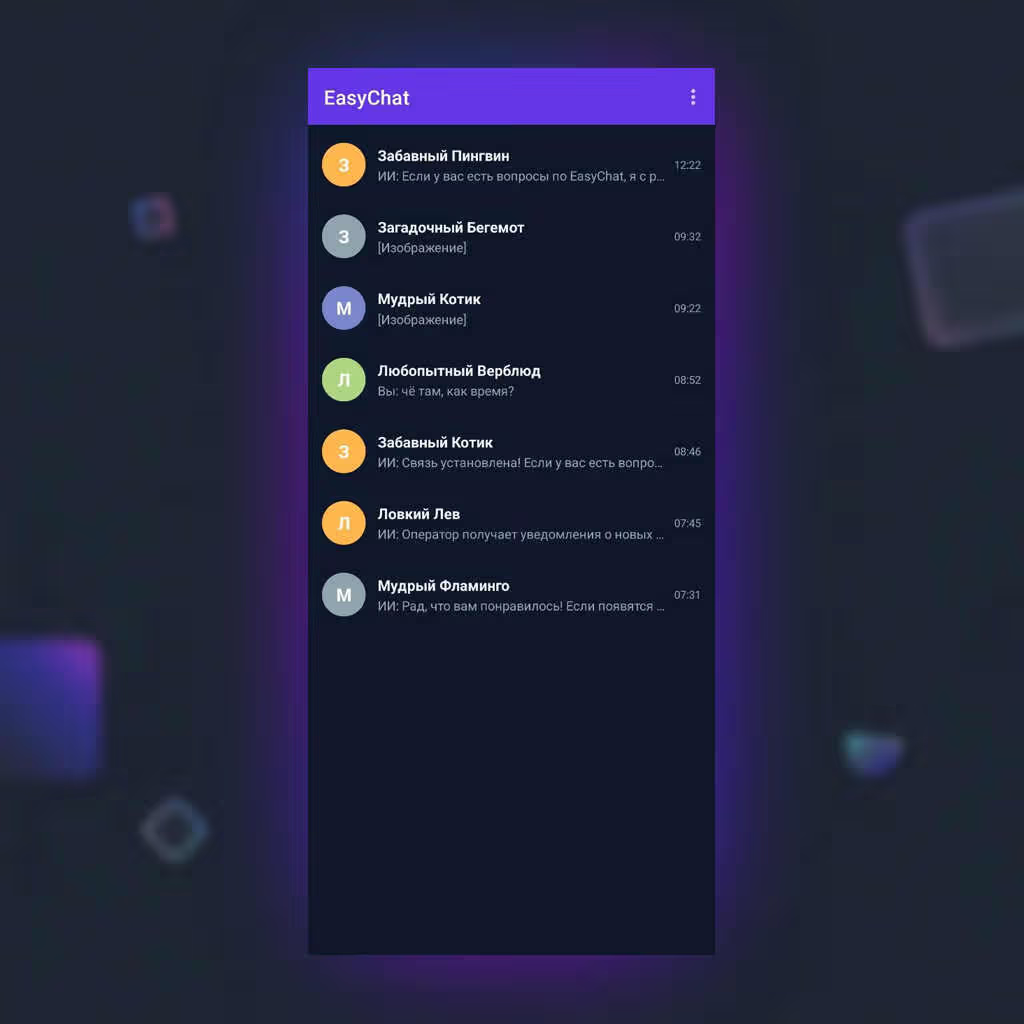
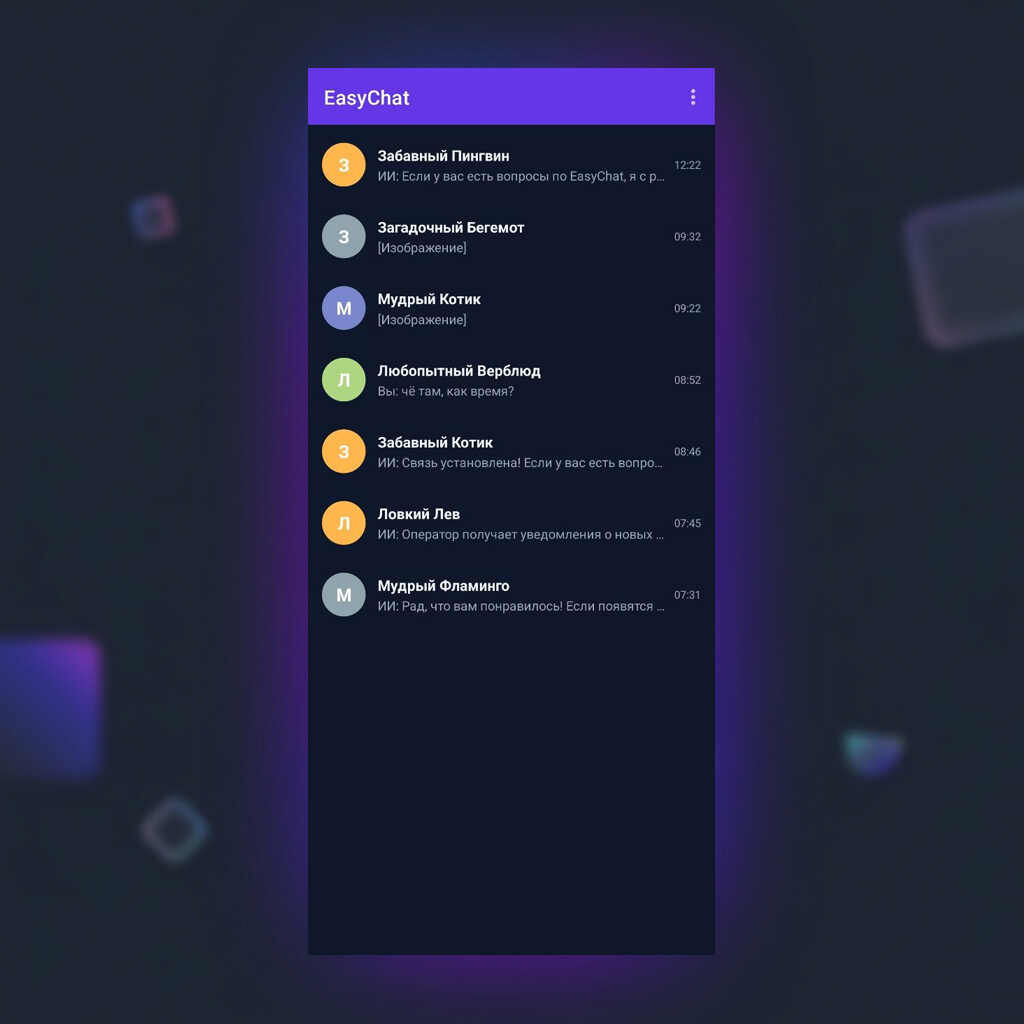
Installation
- Install EasyChat from RuStore or another approved source.
- Open the app.
- Allow notifications if Android asks for permission.
- Open the EasyChat web admin panel on a computer or phone.
Login With QR Or Link
- In the EasyChat admin panel, click the phone connection button.
- If the admin panel is open on the phone, use the login link.
- If the admin panel is open on a computer, scan the QR code with the app.
- Wait for the conversation list.
After changing phones or signing out, create a new QR code. Do not reuse old codes.
EasyChat recognizes one app installation without IMEI or other hardware identifiers. Pairing the same phone to the same operator updates the existing connection instead of creating a duplicate. If that phone belongs to another operator, the app shows both people and asks for explicit transfer confirmation. Nothing changes without that confirmation.
The app refreshes its short-lived access key automatically. Normal key expiry should not return the operator to login; a new QR is needed after sign-out, administrator revocation or the end of the protected session.
Working With Conversations
In the app, operators can:
- see the conversation list;
- work with the same Unassigned, Mine, All, and Archive queues as the web admin;
- see assignees and filter All or Archive by operator;
- filter requests by source: website, MAX, Telegram, VK, Avito and others;
- read message history;
- reply with text;
- select and send up to 10 images in one message, remove individual items from the queue before sending, and send supported documents;
- use emoji, quick replies and AI suggestions when enabled.
An unfinished reply is saved automatically and appears in the same conversation in web admin and on this operator’s other Android devices. The list shows a Draft marker, but an unread customer message always has priority. Offline text remains protected on the phone and syncs when the connection returns. If two versions change at once, EasyChat shows both and asks which one to keep. Files selected before sending remain on the current phone. Reopening a synchronized conversation does not show a redundant comparison dialog.
Under Settings → My profile, an operator can set their own avatar or change the password after confirming the current one. The app opens the system picker for one image and does not request access to the entire gallery. A password change signs this operator out on other sessions while keeping the current phone active.
One check mark on an outgoing message means Sent and two mean Read by the customer. EasyChat shows this only when the channel provides reliable evidence: currently the website widget and personal WhatsApp. Groups, channels and other integrations do not display a guess as a fact.
If the network drops, the app retries one send with the same protected identifier. The server returns the original message, so text, an attachment or an SMS is not sent twice merely because the HTTP response was lost. In an SMS conversation, an already open phone starts the job immediately after the server confirms it instead of waiting for a return push. If the push arrives at the same time, the protected job still hands the message to the modem once.
An administrator or an operator with delete permission can select one or more conversations and remove them. After confirmation, they disappear immediately even when a single-channel filter is active. Old external-channel history is not imported again; a new customer message starts a clean conversation. After a network interruption, deletion can be retried because the operation is idempotent. Server-side attachment cleanup continues in the background.
For website conversations, the app shows the page where the visitor wrote from. This helps the operator understand which product or section is being discussed.
Customer avatars
When a connected channel provides a customer photo, the Android app shows the avatar in the conversation list and next to incoming messages. This helps the operator recognize repeat buyers faster and avoid mixing up similar conversations. Images are prepared by the EasyChat server and cached in the app, without reloading them every time the chat opens.
When AI suggestions are enabled, the operator can open a draft reply inside the conversation, choose a suitable scenario and compare ready replies without technical labels. A suggestion is not sent automatically: the operator reviews it and inserts it into the reply field manually.
The AI suggestion button appears only when the feature is enabled on the EasyChat server and available to that operator. The app checks availability when opening a conversation, so a settings change applies without pairing the phone again.
Customer card
The chat screen includes a customer card. Open it from the top toolbar; on a phone it appears as a bottom sheet, so the operator stays in the conversation. From the customer card, an operator can view customer information, open saved Telegram, Avito, Youla, MAX and VK profiles, see linked channel accounts after a customer merge, add a profile manually or from a link in a message, review possible duplicates, add a tag and leave a note. When EasyChat resolves a city or region from the IP, Android shows the same hint as the web admin panel.
The card shows assignees before tags. Take conversation assigns it to the current operator, while Leave conversation removes only that operator’s own assignment. Sending the first operator reply does the same automatically. When an administrator grants the assignment permission, the card also shows Assign operator, with search for larger teams. The assigned colleague gets a notification without the customer name or conversation text; removal synchronizes silently without another alert.
If the profile already belongs to another customer card, the app asks the operator to confirm a merge. If a profile was unlinked in the web admin panel because of a wrong merge, the linked channel moves back into a separate customer card and disappears from the current customer.
The panel opens expanded. On a small phone its content scrolls inside the screen instead of collapsing from an ordinary vertical gesture, and long links stay inside the card. The latest ordinary internal note is highlighted, while pinned notes move to the top, get a Pinned label and stay visible even in the collapsed list. Older notes expand with Show more, and a new note opens in a full-screen editor whose character counter and save button stay above the keyboard.
Keeping An Open Conversation Current
When an operator replies from the web admin panel, the phone receives a silent sync signal
named sync_chat. The open conversation refreshes without another
sound or visible notification, and the app does not pull an operator away from
older history.
The New messages divider clears only after the operator has actually seen it and starts scrolling the conversation. Programmatic auto-scroll alone does not mark that boundary as read. A long message bubble adapts to the available screen width, so its text should not be clipped on a narrow phone.
These silent FCM-only sync_chat signals do not decrement the 300 delivered
operator-push trial counter. Once the trial is exhausted, phone synchronization
is blocked together with the other operator push scenarios.
Files And Preview
Multiple images from one message appear together in a compact gallery inside
one bubble, and each photo opens separately. The first image is not duplicated:
the app uses the legacy single-image preview only when the message has no modern
attachment list. PDF, DOC, DOCX, ODT, ODS and
ODP appear as document cards with a name, format and size. PDFs also get a
first-page preview.
Voice messages from Telegram Bot and MAX Bot appear in a focused
card. Operators can play, seek, select 1×, 1.5× or 2× speed and copy the
automatic transcript. Playback pauses when the app goes to the background, so
a private customer recording does not continue unexpectedly.
If the channel does not accept a file type, the app hides the unavailable action or shows a clear error.
Notifications
Notifications help operators avoid missing new requests.
Check:
- Allow Android notifications.
- Send a test message from the website or a connected channel.
- Make sure the notification arrives on the phone.
- Tap the notification and check that the correct conversation opens.
If notifications are missing, check Android permission, battery saver, phone internet connection and EasyChat license status.
Trial And Purchase
The free period includes 300 push notifications. When the limit is used, the app shows a clear banner and purchase screen. The limit is counted by delivered operator push notifications, not by normal conversation messages. The website widget remains available for evaluation without a time limit.
After payment, tap Check purchase. When EasyChat sees the active purchase, the app starts receiving fresh data and notifications again. This is the fastest path. If the app is closed, a periodic background check can also clear the stale lock after server confirmation; while offline, SMS stays paused until that check succeeds. Reaching the free-period limit does not cancel this check or push-connection recovery, so another QR login is normally not required after purchase.
Security
- Connect phones only for active operators.
- Do not send login QR codes to public chats.
- If a phone is lost, remove its session in the EasyChat admin panel.
- If the domain is blocked, the app stops working with that domain until the block is removed.
Common Situations
- The QR code does not scan. Create a new QR code and check phone internet.
- The list is empty after login. Send a test website message and check operator permissions.
- Notifications are quiet or missing. Check Android permissions, notification volume and battery saver.
- The SMS reached the phone but is not visible in EasyChat yet. The app keeps the phone number and text in an encrypted Android queue and retries after the network or session recovers, but only for a number that already has an EasyChat SMS conversation. An unknown sender is rejected before its text is read or stored. Before upload, EasyChat checks permission and the server’s conversation list again. If an administrator revokes receive access, the encrypted queue is deleted without decrypting it. After several failed attempts, Android shows a system notification without the phone number or message text: open EasyChat and check the connection. If EasyChat cannot safely encrypt or store a reply, Settings → SMS and background work immediately shows a red secure-storage check. Tap Check again to test storage without sending an SMS or transferring its text to the server. If the encrypted queue is full or replies older than 30 days are removed, diagnostics reports that condition separately without including a phone number or message text.
- The phone has two SIMs. By default, EasyChat accepts replies only from the SIM selected by Android for outgoing SMS. This prevents a personal SIM from silently entering work conversations. On a dedicated work phone, or for a two-SIM test, open the reliability screen and explicitly select All SIMs; the expanded-access warning remains visible beside the setting.
- An outgoing SMS did not arrive. In the web admin, open Operators,
find the phone and select SMS diagnostics. The stages show whether
Firebase accepted the push, the phone received it,
SEND_SMSwas granted, a SIM was selected and the carrier accepted the message. Send tests only to your own number. If the phone receives the push while offline, EasyChat safely retries only the technical acknowledgement after connectivity returns. This background acknowledgement does not store the number, SMS text, or access credentials. If Firebase permanently rejects a stale push token, an SMS that has not started is reassigned to another approved and ready operator phone. EasyChat moves the same job instead of creating a second SMS. - SMS must send while the app is closed. Normal backgrounding and swiping EasyChat from Recents are supported: push starts protected background work. Reliable real-time wake-up currently requires working Google Play services and FCM. On Huawei/HONOR devices without GMS, periodic checks are only a delayed fallback and cannot guarantee timely delivery of a remotely created SMS job; the server does not report such a phone as ready to send. On Android 7–11, the system may briefly show a neutral background SMS processing notification; it contains neither the recipient nor message text. Open Settings → SMS and background work and resolve SIM, push, secure storage, battery and background-start warnings. EasyChat shows the path relevant to the current phone manufacturer. Diagnostics use a dedicated screen and do not interrupt conversations when the phone is ready. After returning from system settings, the warning disappears automatically once every verifiable check passes. After Android Force stop, the system blocks push and background work for every app until it is opened manually; apps cannot bypass this restriction.
- The result is unknown. Android may have stopped the process during the modem handoff. EasyChat does not resend that SMS automatically because it could create a duplicate; check the system SMS conversation and the admin diagnostic log. A second attempt is allowed only when every part explicitly failed for a temporary reason, the modem accepted no part, the SIM stayed the same and the job deadline is still valid.
- The SMS deadline expired. The phone did not claim the outgoing SMS within its safe window. EasyChat does not send the stale message later without an operator. The deadline follows server time and is unaffected by an incorrect device date or time zone.
- A file is not sent. The channel may not support that file type.
- The app asks to log in again. The session may have been ended by an administrator or the domain may be temporarily blocked.
Quick Checklist
Scheduled Messages
Type a message and select the clock to the right of Send. Android displays the EasyChat installation date and time. Scheduled items stay in a separate strip below the message history; select a card to edit, send now, or cancel it. In the customer card, the paper-plane action next to a phone number opens SMS/MAX with a choice to send now or later.
- The app is installed.
- The operator logged in with QR or link.
- The conversation list opened.
- A test message is visible in the app.
- The operator sent a reply.
- A notification arrived on the phone.