EasyChat appearance
Open Settings → General as an administrator. You can set the brand colour and operator message colours independently.
- Choose a brand colour
- Style operator messages
- Review and save
1. Brand colour and widget theme
Choose a shade in the main widget colour field or paste a HEX code such as
#6366F1. This also sets the accent colour in the EasyChat admin panel.
Keep text on the brand colour set to Automatic to let EasyChat choose
light or dark text.
The widget theme controls the light or dark appearance of the chat on your website. It does not change the theme on the operator’s phone.
2. Operator messages
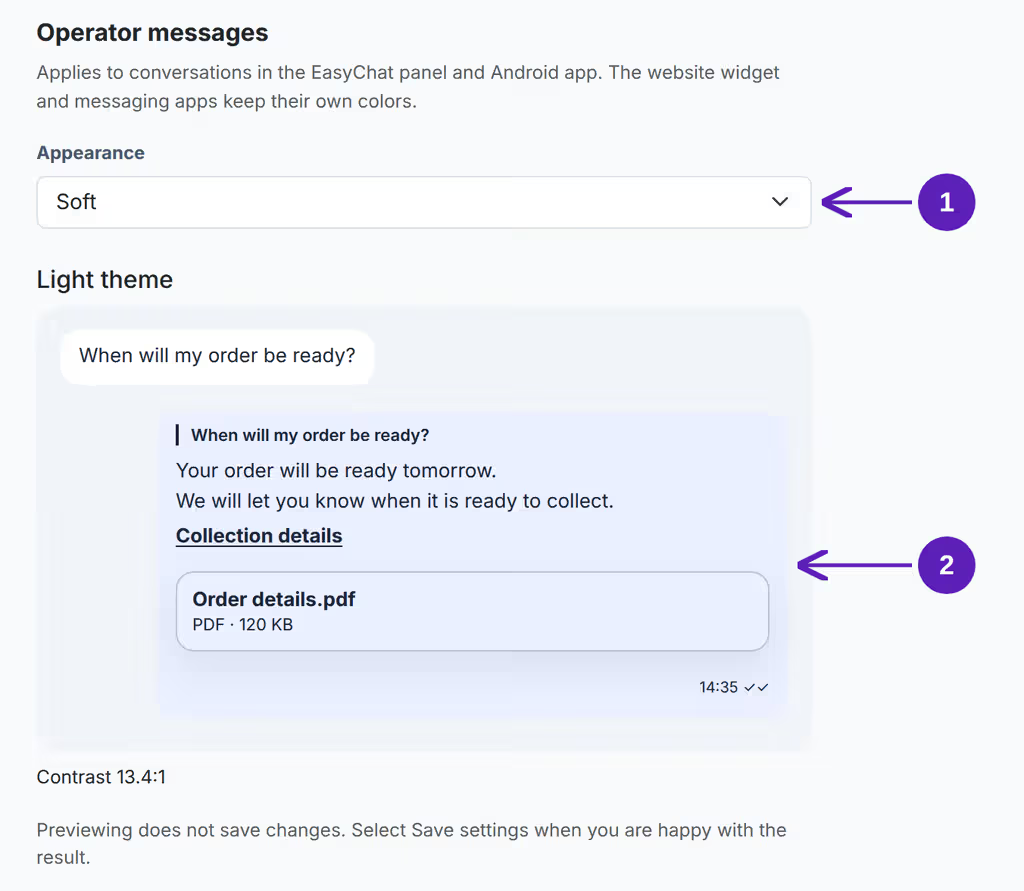
Choose how to style replies in the Operator messages section.
Ready-made style
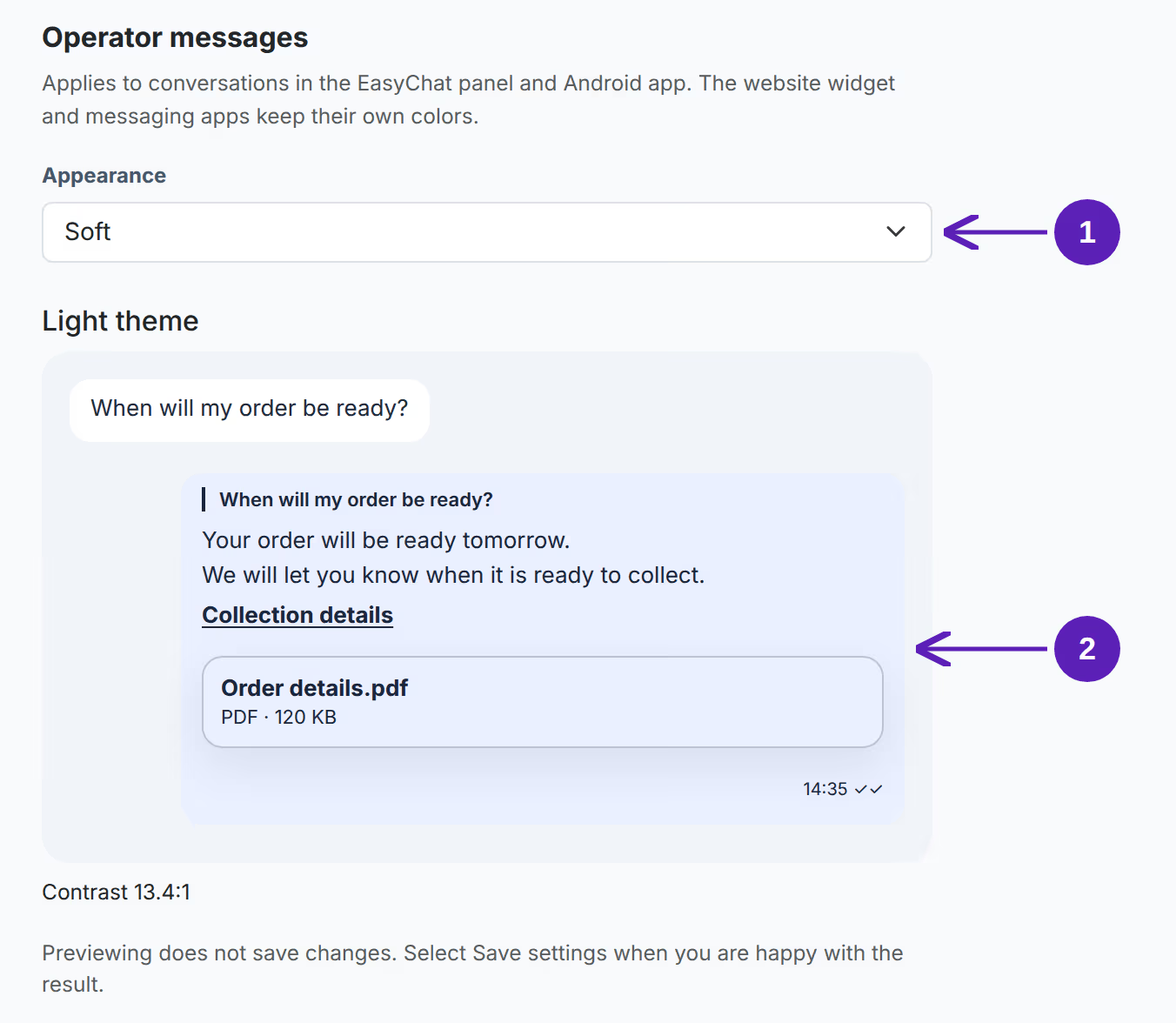
Choose Soft for a gentle background and readable text without picking individual colours. New installations use this style by default. Match interface color uses your brand colour for replies.
Custom colours
Choose Custom colors and set the Message background. Leave the text colour on Automatic, or select Choose a color to pick it yourself.
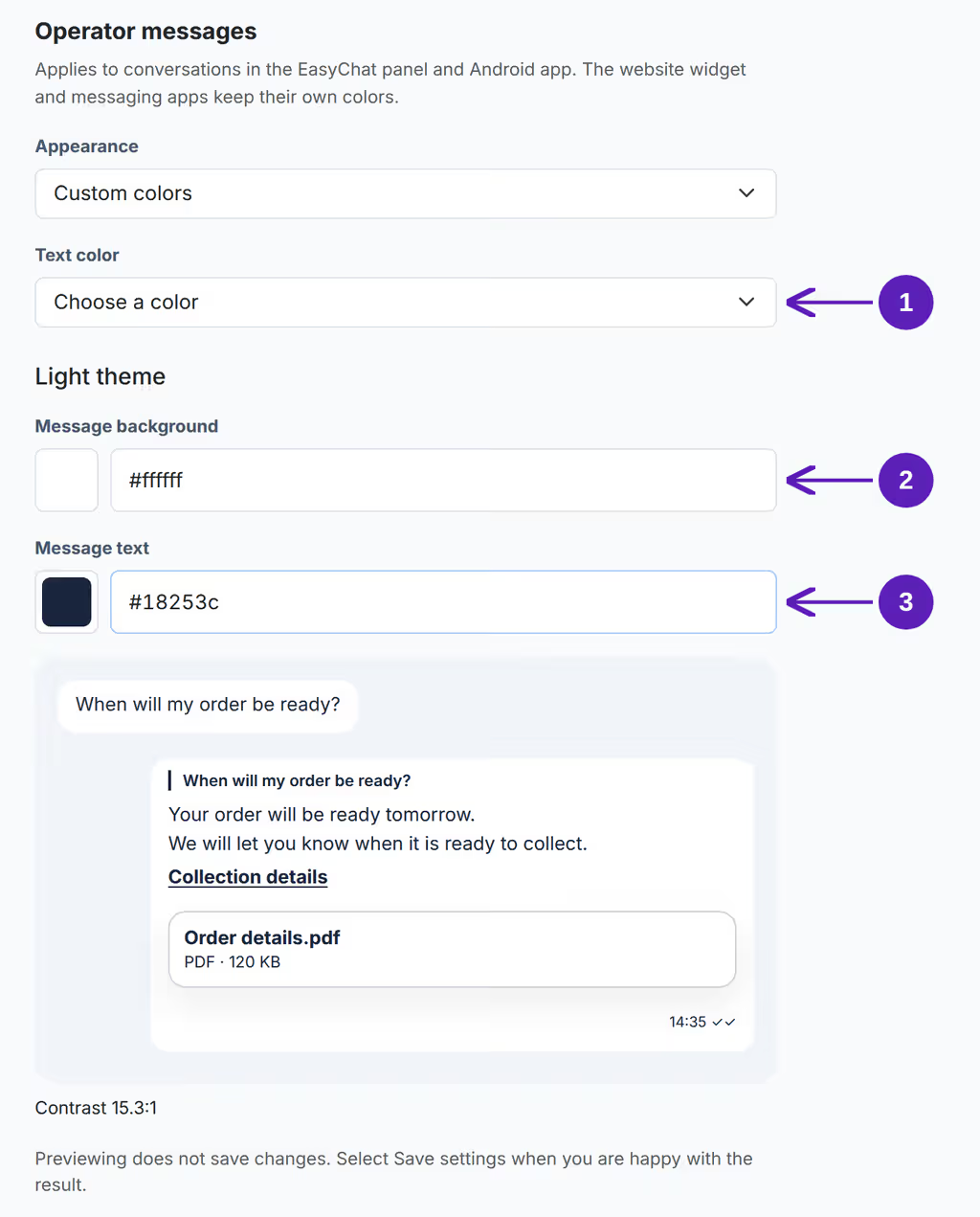
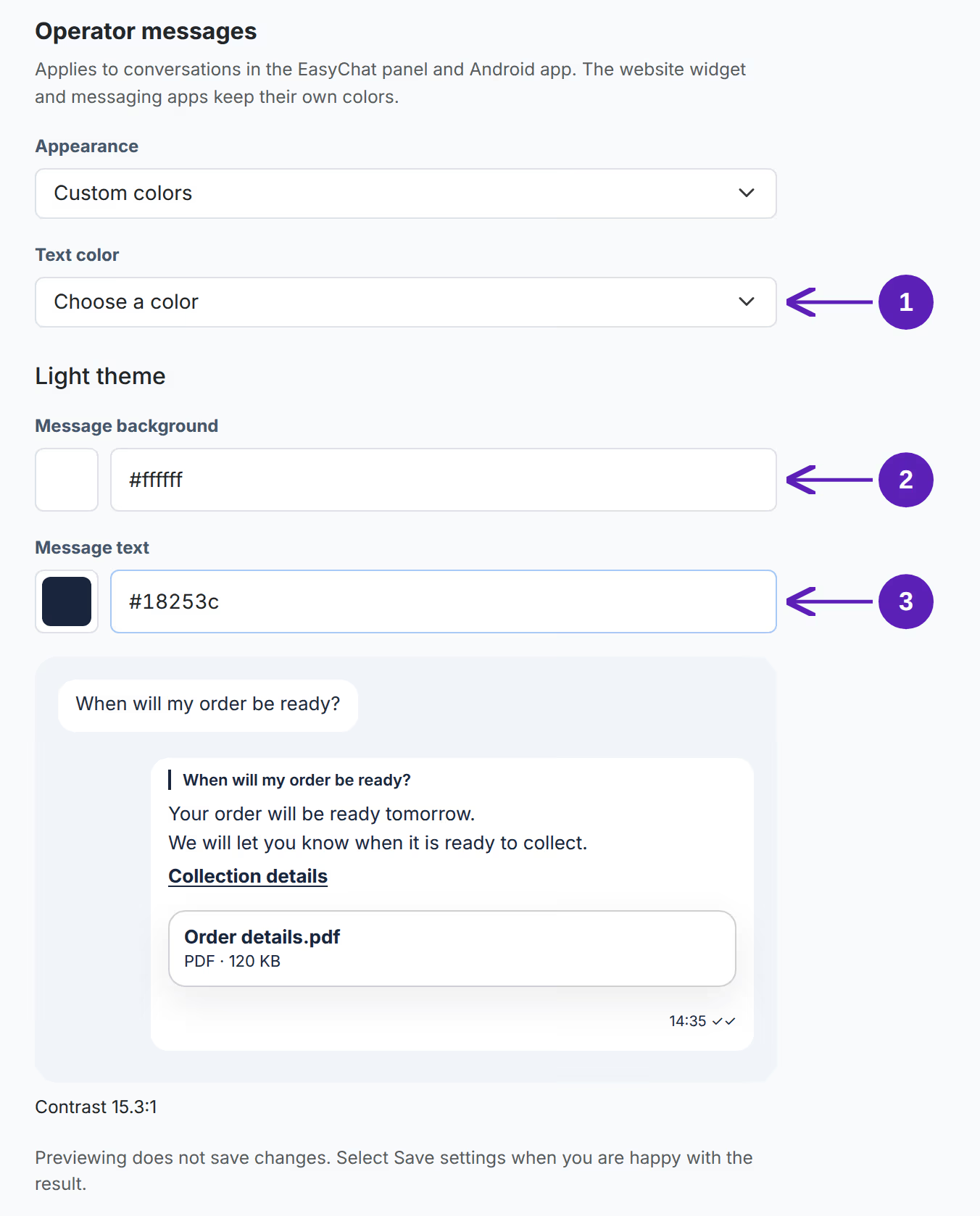
Use the colour picker or enter a #RRGGBB code. If the text is hard to read,
EasyChat asks you to adjust the colours before saving. Switching text back to
Automatic is a quick way to fix the contrast.
3. Review and save
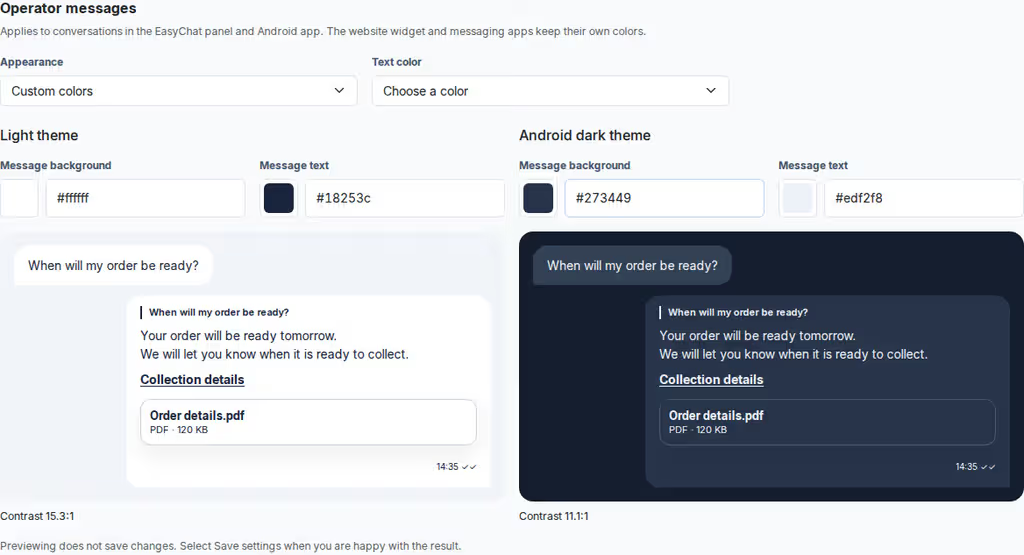
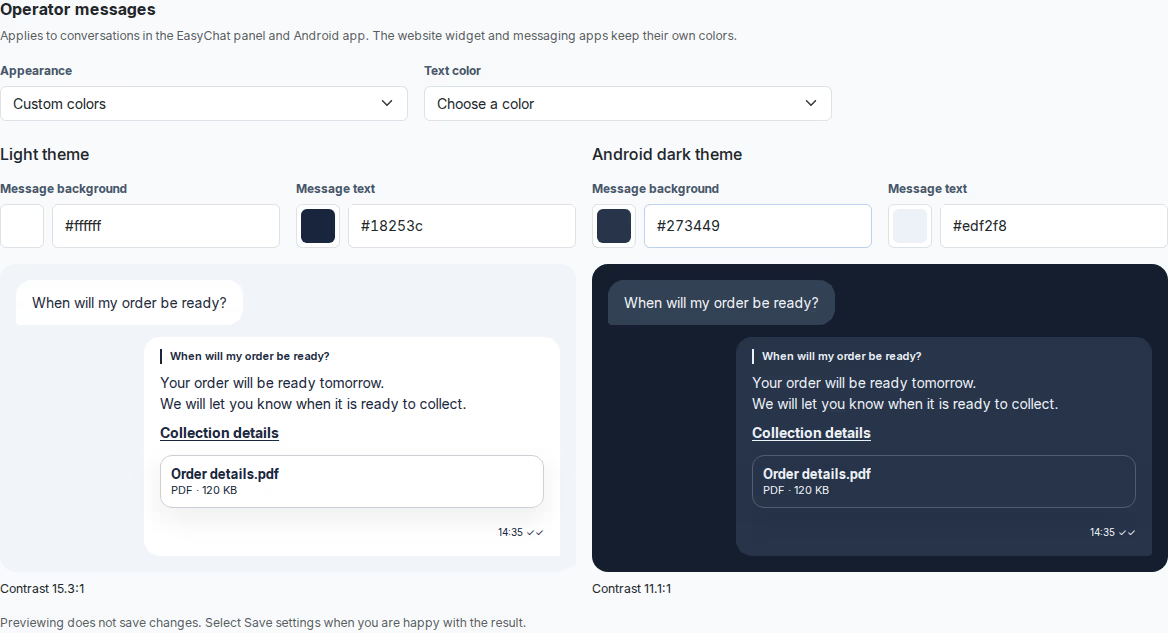
Check the preview’s text, link, timestamp and attachment. A gentle background with clearly readable text is enough for a calm conversation view. Review both palettes if you use Android in dark mode.
Select Save settings, then open Conversations. The preview does not save changes on its own. An Android app version that supports these settings picks up the colours after syncing with the server.
How do I restore the previous appearance?
Choose Match interface color and save. Updating an existing EasyChat installation preserves its previous appearance automatically.
Ready when…
Your conversation background
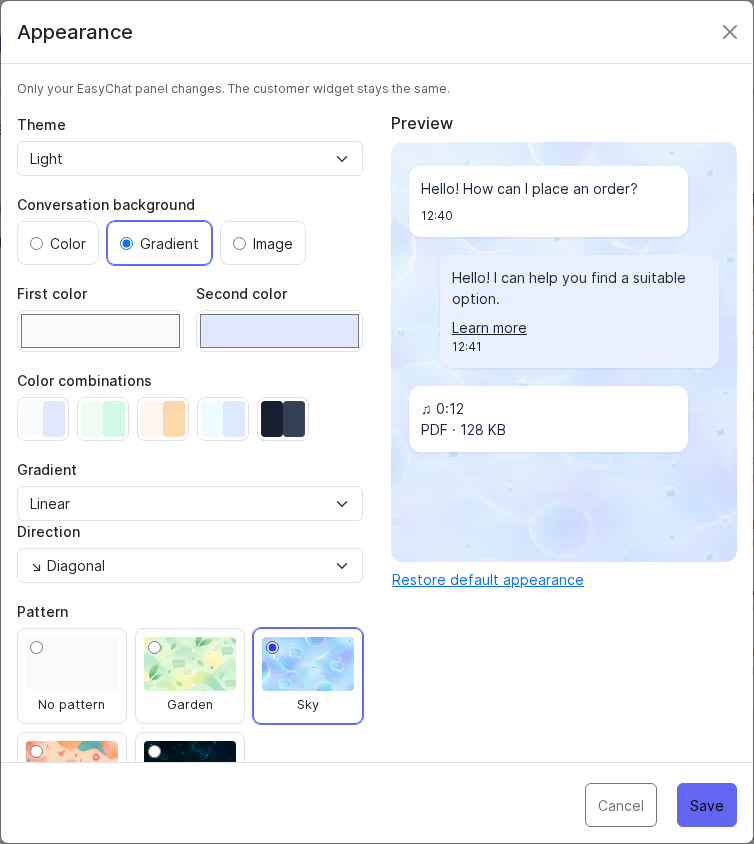
Select your name or avatar in the panel, then choose Appearance. Every operator can customize their own web panel. These settings leave the customer widget and Android app unchanged.
- Choose a light or dark theme, or Use device setting.
- Choose Color, Gradient, or your own Image as the background.
- For a gradient, start with a color combination. Choose a linear, radial, or conic gradient and its direction. The preview updates immediately.
- Optionally add a Pattern: Garden, Sky, Peach, or Cosmos. Adjust its size and intensity with the sliders. Patterns can be placed over a color, gradient, or image.
- Select Save to apply the result. Until then, only the preview changes.
Upload a JPEG, PNG, or WebP image up to 5 MB. WebP uploads require server support. Only you can access your image; EasyChat creates a smaller copy without metadata. A failed upload leaves your existing background available.
Under Use a schedule, select a time zone and the times for switching to the light and dark themes. An enabled schedule overrides the manual theme choice. EasyChat updates the theme when you return to an open tab.
Restore default appearance resets the preview to a light, neutral background; select Save to apply it. Cancel keeps your saved settings. If another tab changes the settings, EasyChat offers to load the current version instead of silently overwriting your selection.