Download, Setup Code, and EasyChat ID
Short Answer
The EasyChat package starts downloading immediately. Registration, email and payment are not required for the free download.
After the download starts, the website may show a short setup code. Copy or save it: the matching field is on the first EasyChat setup step. The code is optional, so you can close the prompt and continue downloading and installing.
The EasyChat ID option in the same prompt is a separate, optional buyer-cabinet sign-in. It is not required to download the package.
What Happens After You Select Download
- The browser starts downloading the package immediately.
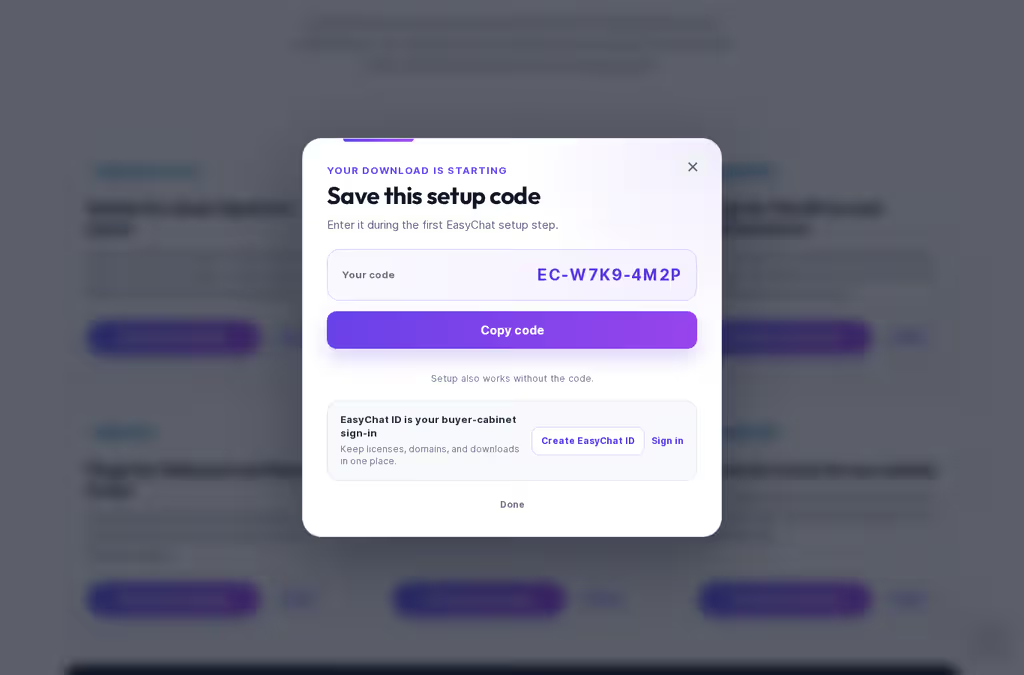
- After the browser download window closes and you return to the page, the Save this setup code prompt appears.
- Select Copy code. A code looks like
EC-ABCD-2345. - Enter it during the first EasyChat setup step.
- If you close the prompt, the code stays next to the selected download button. Select it to open the prompt again.
If you selected Required only cookies, the package still downloads immediately, but the website does not create an advertising link or show its setup code.
Why Use an EasyChat ID
EasyChat ID is the owner’s sign-in name for the buyer cabinet. It is not an operator login and does not replace the EasyChat admin panel on your website.
You may create an EasyChat ID after a free download to:
- sign in to the buyer cabinet;
- keep licenses and linked domains in one place;
- download available purchases again.
Creating the ID remains optional. If you already have one, select Sign in and use your existing cabinet.
Where To Enter The Short Code
During the first EasyChat launch, find Setup code from the download page and
enter the complete value, for example EC-ABCD-2345.
The code:
- is optional and never blocks setup;
- is not a license key, password or operator code;
- works only after the installation itself is verified over
https://; - is removed from the installed module settings after a successful check.
If the code is lost or expires, continue without it. EasyChat, the widget, the free start and a later purchase continue to work.
Data That Is Never Sent
When an installation is linked, the central server does not receive:
- conversations or message text;
- attachments;
- customer contacts;
- shop products or orders;
- passwords, channel keys or database settings.
Only technical installation details are sent: its random ID, domain, platform type, EasyChat version and successful verification status. See User security for details.