Avito
EasyChat brings Avito messages into the shared conversation list. The operator sees the buyer, listing, message text and can reply from EasyChat without switching tabs.
What To Prepare
- An Avito account with a tariff or subscription that includes Messenger API.
- Avito application details for connection.
- EasyChat administrator access.
- Working HTTPS on the website where EasyChat is installed.
Under the current Avito terms, access depends on the listing category:
- Goods and Jobs require the Maximum tariff;
- Services support the Extended or Maximum tariff.
Avito may rename tariffs or change their contents. Before connecting, make sure the selected package explicitly includes Messenger API. Client ID and Client Secret alone do not guarantee access to every conversation. See Avito’s Messenger API page and API documentation.
Connection
- Open Settings → Messengers → Avito.
- Paste the Avito application details.
- Click Check and connect.
- Wait for the green Connected status.
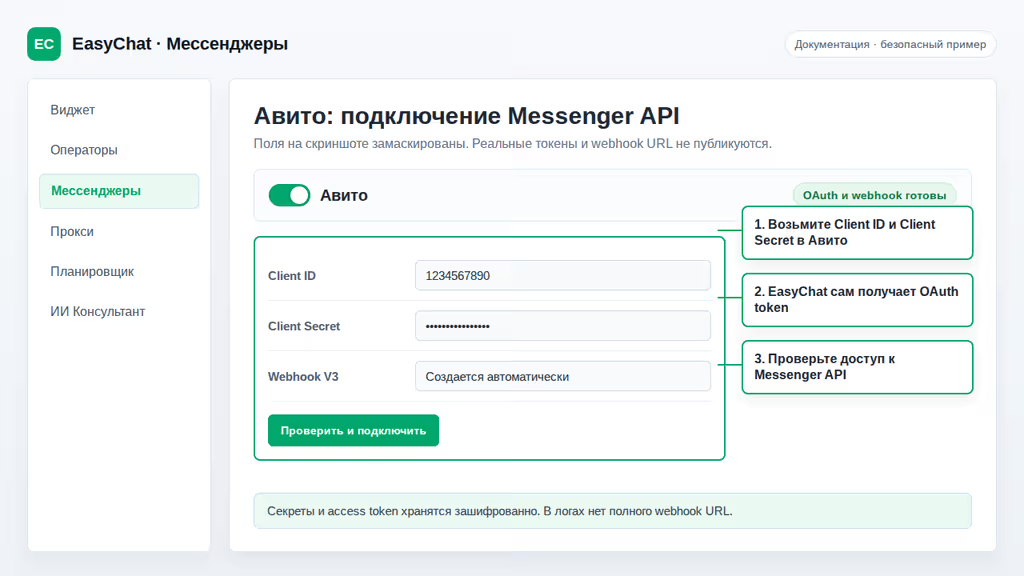
After connection, send a test message from Avito. A new Avito conversation should appear in EasyChat.
What Operators See
In an Avito conversation, EasyChat shows:
- the buyer name or available label;
- the listing that the message belongs to;
- the price and main listing details when Avito provides them;
- a protected listing thumbnail in the conversation list and card when an image is available;
- available conversation history;
- images and other supported attachments.
If Avito temporarily does not provide a name, EasyChat may show a neutral label such as Avito user. The name usually appears automatically after the next successful update.
Replies And Attachments
The operator can reply with text and send images. PDF, DOC, DOCX, ODT,
ODS and ODP documents reach the buyer through a temporary protected
EasyChat link because the Avito API has no native file-send flow for them.
Several photos can be selected at once. EasyChat sends the complete selection in order, while Avito displays the photos as adjacent individual messages. The text is sent once before the first photo. If Avito accepts only part of the selection, EasyChat does not automatically repeat photos that were already delivered, preventing duplicates for the buyer.
Links in messages are clickable and open in a new window.
AI Suggestions For Listings
When the AI assistant is enabled, EasyChat uses listing details as context: title, price, description and other available facts. This helps operators reply faster and more accurately.
If some details have not loaded yet, AI uses only the information already available in the conversation. The operator always reviews a suggestion before sending it to the customer.
Conversation History
EasyChat tries to show the available Avito history so the operator understands the context. If some older messages are not available from Avito, they may not appear in EasyChat. New messages after connection should enter the conversation automatically.
Avito Health
EasyChat prevents browsers and password managers from autofilling the Client ID and Client Secret fields. If a browser still inserts the current page URL into Client ID, EasyChat will neither save it nor send it to Avito. Remove the URL and paste the Client ID from your Avito account.
New credentials are saved only after Avito validates them successfully. A typo in replacement credentials will not overwrite a previously working connection.
The Avito Health button shows a safe channel check: webhook status, profile data, local contacts, queue state, local avatar file and outgoing messages from Avito history that may be missing from the local conversation.
EasyChat also checks recent conversations in the background. When Avito returns HTTP 402, administrators see a counter next to Integrations and an Avito restricted Messenger API by tariff card. It lists affected conversations and provides a recheck action and a safe ready-to-copy support request. The card disappears automatically after access is restored and a check succeeds.
The full webhook URL, app secrets, full avatar links and message texts are not shown in this diagnostic block. If support needs the result, a screenshot of statuses and recommendations is enough.
Diagnostics
Enable Avito diagnostics only while checking a problem. It helps confirm whether the channel is connected, new messages arrive and listing information is available.
Diagnostics must not show app secrets, full connection links, payment data or private messages. Still check every screenshot manually before sending it to support.
Common Situations
- Avito does not connect. Check that the application details are copied fully and belong to the right account.
- EasyChat says the connection was not found. Click Check and connect again and make sure the website opens over HTTPS.
- The conversation appears as “Avito user”. Wait for the next message or customer-card refresh. The name usually appears later.
- The operator reply is not delivered. Check Avito connection status and make sure the conversation belongs to the connected profile. If EasyChat reports HTTP 402, enable a package with Messenger API for the listing category or send the prepared request to Avito support.
- AI does not know listing details. Open the conversation a little later: EasyChat may load listing data after the incoming message.
Quick Checklist
- Avito application details are saved in EasyChat.
- The channel shows a green status.
- A test Avito message appeared in EasyChat.
- The operator sent a test reply.
- The conversation shows a listing card or a clear label.
- Diagnostics are disabled after checking.