EasyChat connects directly to your mail server. In the admin panel, open Integrations → Email and enter the work mailbox. Yandex Mail, Mail, Rambler Mail, Gmail, iCloud Mail, Yahoo Mail, Zoho Mail, and Fastmail settings are filled in automatically. There is no provider choice or separate search button.
Create an app password using the link shown by EasyChat and paste it. Select Test email to verify the current draft without saving it. EasyChat reports incoming mail, outbound delivery, and domain deliverability separately. After a successful test, select Connect email. EasyChat never displays a saved password again. Many providers reject the regular account password in mail clients.
The deliverability check also evaluates the sender address against the transport that actually passed verification. In automatic mode, advice follows the route selected by EasyChat; in manual mode, it follows only the selected route. A rejected SMTP route is never offered as an action. When a public-provider address is sent through hosting or CMS mail, EasyChat recommends a customer-owned domain and SPF/DKIM configuration for that verified route. An alternative appears only after it has passed a separate check. For a customer-owned domain, EasyChat explains missing records, flags multiple SPF records, and tells the administrator where the selected sender must provide its DKIM selector. DNS readiness is not presented as proof of a delivered message: actual DKIM and domain alignment still require a received test email.
EasyChat also ranks one suitable sender address. Direct SMTP uses the tested mailbox, site mail uses the CMS sender, and hosting mail suggests an address on the store domain. The suggestion stays compact beside the field. Select Use, then run the test again. EasyChat never activates a guessed address without confirmation.
After a successful test, the secondary action changes to Connection verified ✓, leaving Connect email as the single primary next step. Changing the address, login, password, or server resets the verified state.
After connection, EasyChat keeps the health state current from real channel activity: background synchronization confirms incoming mail, while an actual operator reply confirms outbound delivery. When everything is healthy, the screen shows one compact Email is working summary with optional details. If an error or recommendation appears, only the item requiring attention is expanded automatically.
If the hosting provider blocks external SMTP, EasyChat can use a verified CMS mail bridge or the hosting server’s local mail relay. These options become available only after a real capability check; the CMS name alone is not enough. Technical settings also allow direct SMTP or the customer’s own SMTP.BZ API key. Message content never passes through EasyChat’s central server.
For another or self-hosted provider, EasyChat reveals the technical settings automatically. Use IMAP 993 and SMTP 465 by default. Use port 587 only when your provider requires STARTTLS. Enable private-server access only for a reviewed corporate server. Testing the same address again keeps the IMAP and SMTP servers you entered.
On first connection, EasyChat records the current mailbox position and imports new messages only, so existing mail does not flood the conversation list. Operator replies enter a durable queue, use the configured sender, and continue the original Message-ID thread even when the subject changes. This version supports text email; attachments remain in the mail client and are not transferred through EasyChat.
The Email 0 filter appears in the conversation list immediately after the mailbox is connected, even before the first incoming message. Its count updates automatically when new email conversations arrive.
The customer name comes from the decoded sender name in the email From
header. If a later message has no sender name, EasyChat keeps the known contact
name instead of replacing it with the email address.
Formatted emails
Choose Open email in a conversation to view text, tables, lists and embedded images in a separate reader. The text remains in the conversation for searching and quoting. The reader is available in the browser and Android app.
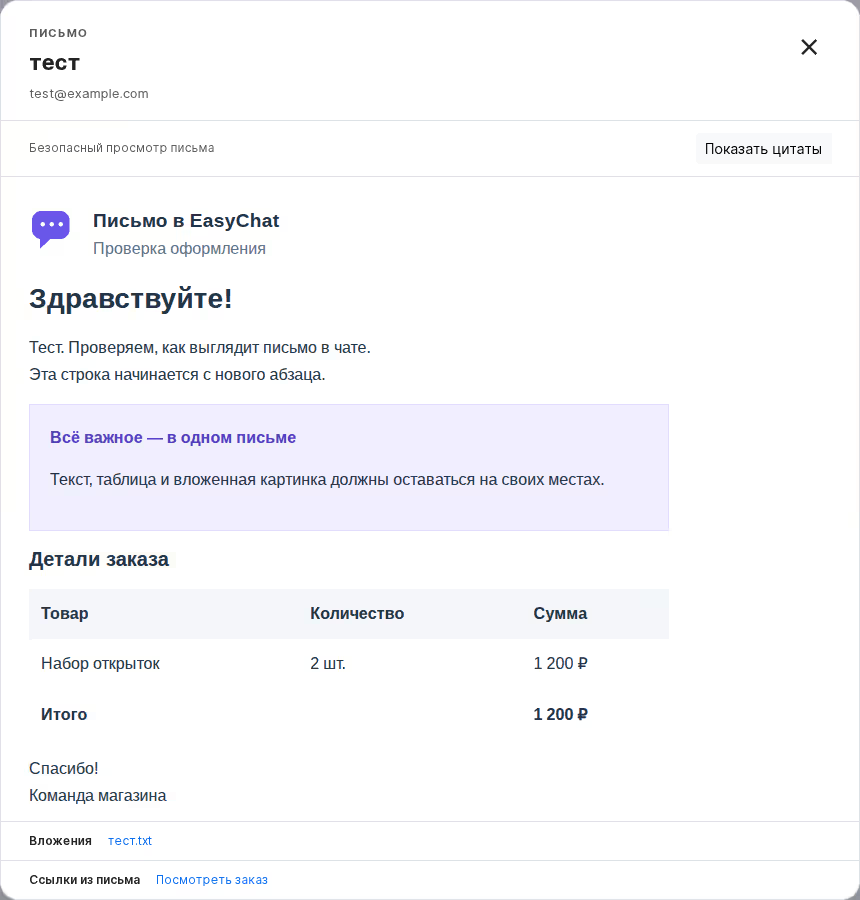
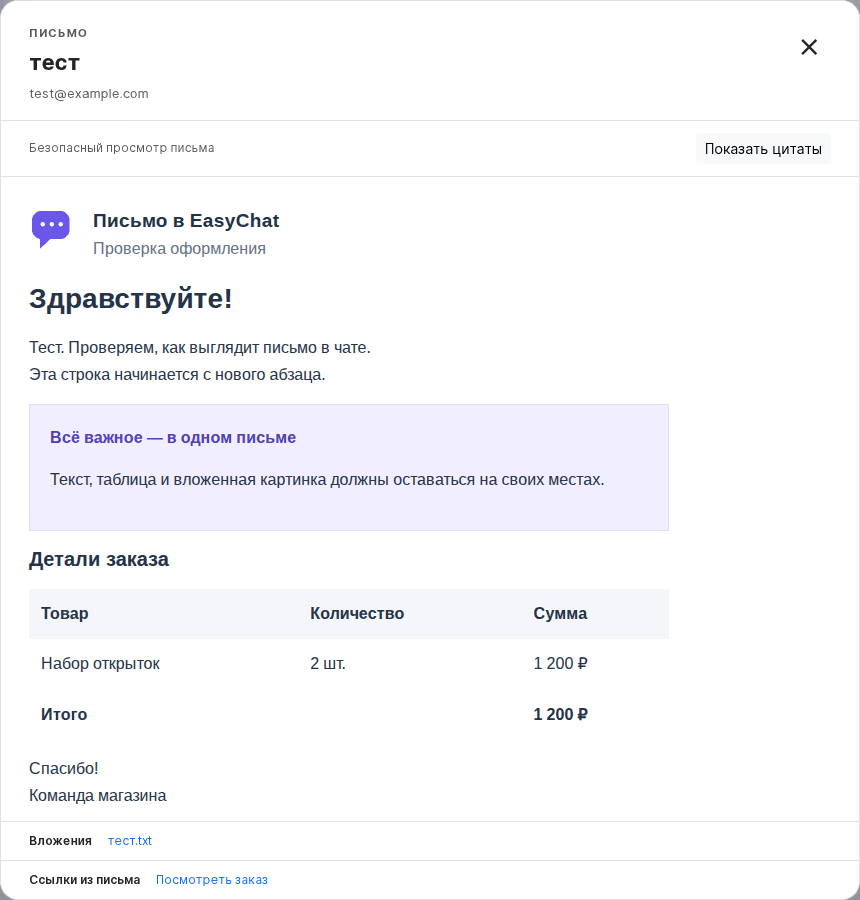
Previous replies are collapsed by default. Choose Show quoted text to read them. Links and attachments appear below the email; on Android, use the buttons in the bottom bar to open their lists.
External images are hidden. Load images retrieves them only when requested, provided the source is available and passes the safety checks. Loading them may tell the sender that you opened the email. Embedded images appear immediately. Scripts and unsafe markup do not run, so complex layouts may look simpler than in the sender’s email app.
Restore formatting in older emails
Go to Integrations → Email → Restore older emails and choose Restore emails. EasyChat checks the connected inbox in the background. You can close the page and return later to see the result.
Existing messages are not duplicated. Older emails do not trigger notifications or automatic replies. New emails continue to arrive normally. If the original has been deleted from the mailbox, its formatting cannot be recovered from plain text alone. If restoration pauses, check the connection and try again.