Connect Telegram
EasyChat receives messages from a Telegram bot into the shared conversation list. The operator replies from the admin panel or Android app, and the customer receives the reply in the same Telegram chat.
What To Prepare
- A Telegram bot created in
@BotFather. - The bot key from BotFather.
- EasyChat administrator access.
- A working HTTPS website.
Treat the bot key like a password: do not include it in screenshots, chats or public instructions.
Create Or Find A Bot
Open @BotFather in Telegram.
- Use
/newbotfor a new bot. - Use
/mybotsfor an existing bot and select the right one.
Copy the key completely.
Connect In EasyChat
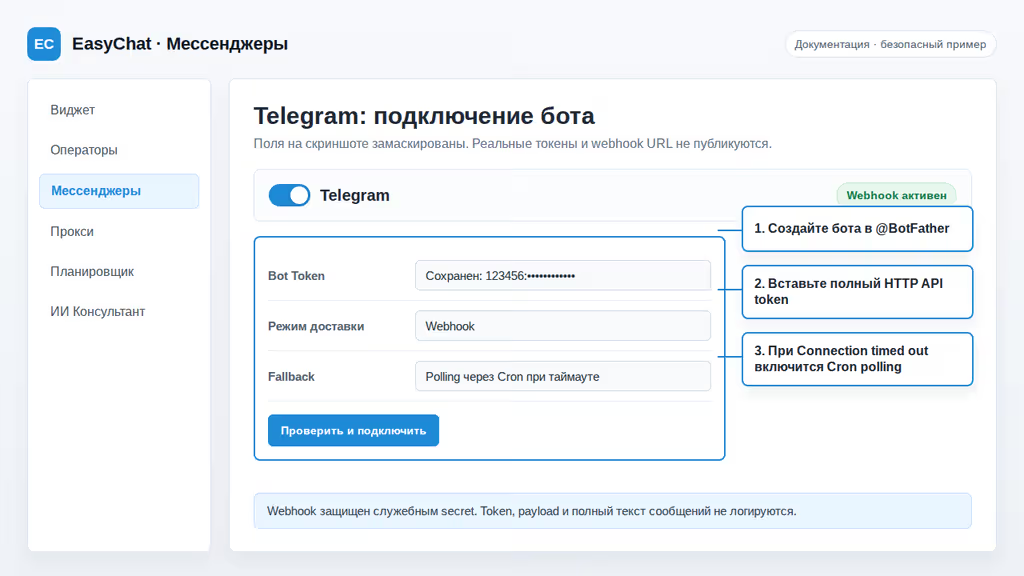
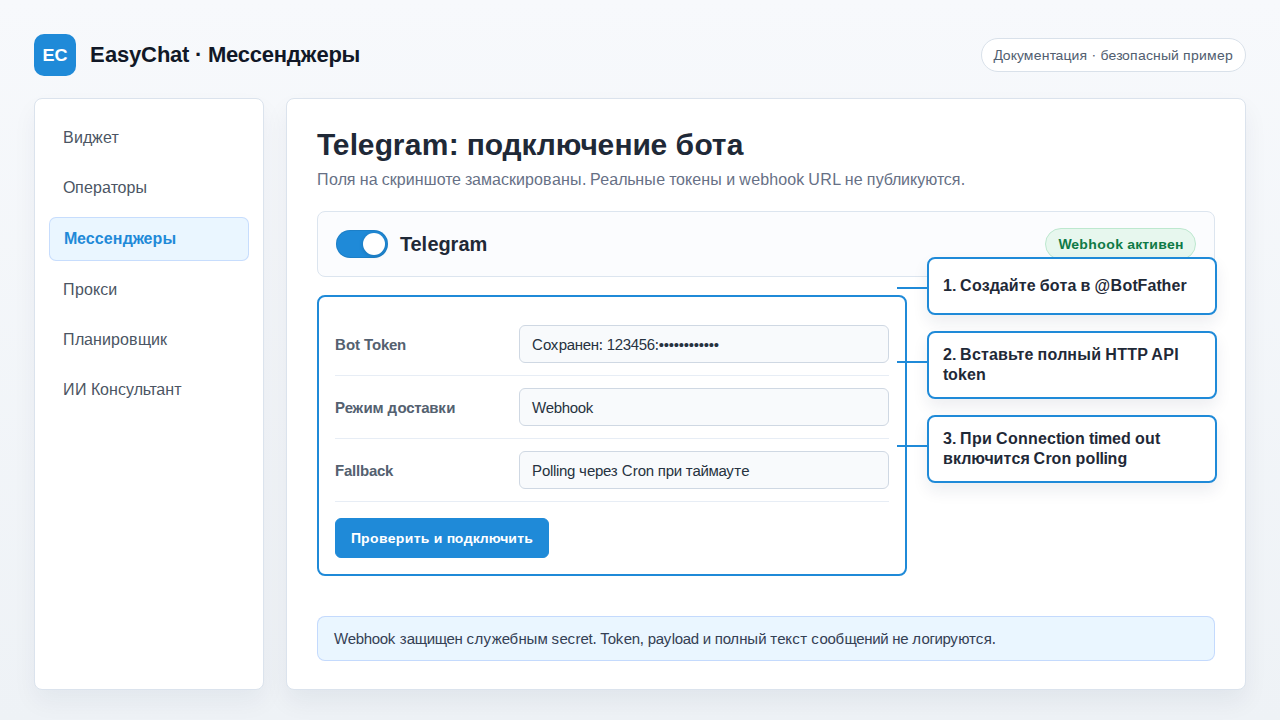
Open EasyChat → Integrations → Telegram.
- Paste the key into Bot Token.
- Wait for the automatic check.
- Click Check and connect if you need to retry.
- Make sure the card shows Connected.
Check The First Conversation
- Open the bot in Telegram as a regular user.
- Press Start or send a message.
- EasyChat should show a conversation with the Telegram source.
- Reply from EasyChat.
- Check that the user receives the reply in Telegram.
Next, hold the microphone button and send the bot a short voice message.
EasyChat shows a player in the conversation and prepares the text below it
automatically. Operators can seek, listen at 1×, 1.5× or 2×, and copy
the transcript. Messages up to 20 MB and 15 minutes are supported.
Forwarded Messages And Photos
When a customer forwards text or a photo to the bot from another conversation, EasyChat stores the attachment in the regular history and shows a Forwarded marker above it. When Telegram makes the origin available, the marker also shows the user, group or channel name. For a hidden sender, EasyChat uses the safe label supplied by Telegram and never exposes internal identifiers of the original conversation.
To check the flow, forward a photo from another chat to the bot. EasyChat should show the photo, its caption when present, and the forwarded marker.
If Messages Do Not Arrive
Telegram usually delivers messages immediately. If hosting or site protection blocks incoming requests, EasyChat can collect messages through a background task. Open the EasyChat scheduler section, copy the command from your installation and add it to the hosting panel about once a minute.
If Diagnostics Shows cURL 7 Or 28
These are network-route errors, not Telegram bot-token errors:
- cURL 7 means the server could not connect to the proxy address or port;
- cURL 28 means the proxy or remote service did not respond before the configured timeout.
Open Parameters and diagnostics → Proxy, verify the host, port, proxy type
and credentials, confirm the Telegram route, save and run the check again. If
the direct route works while the proxy returns 7 or 28, replace that
proxy; the bot and its token are not the cause.
Common Situations
- EasyChat says the key is invalid. Copy the key from BotFather again.
- The bot is connected, but messages do not arrive. Check website HTTPS and background tasks.
- After replacing the key, the old bot does not reply. Click Check and connect again.
- Support needs details. Send a status screenshot without the key or private messages.
Quick Checklist
- The bot is created in BotFather.
- The key is pasted into EasyChat.
- The connection status is green.
- A test message appeared in EasyChat.
- The operator sent a reply.
- A voice message plays and has a transcript.
- A forwarded photo appeared with a Forwarded marker.