Connect VK
EasyChat receives messages from a VK community into the shared conversation list. The operator replies from EasyChat, and the customer receives the reply in VK.
If an operator replies directly in VK, EasyChat also saves that reply in the conversation history.
For reliable message delivery, set up the main cron and verify it runs. Some hosts process messages immediately, but queued work and retries after errors still need a working cron.
What To Prepare
- Owner or administrator access to the VK community.
- A community access key.
- A working HTTPS website.
- EasyChat administrator access.
Treat the access key like a password: do not send it in chats, screenshots or public instructions.
Create A Community Key
In VK, open the required community:
Manage → Advanced → API usage → Access keys
Create a key and grant only the rights you need:
- community messages;
- community management;
- photos, if operators will send images;
- documents, if operators will send PDF, Word or OpenDocument files.
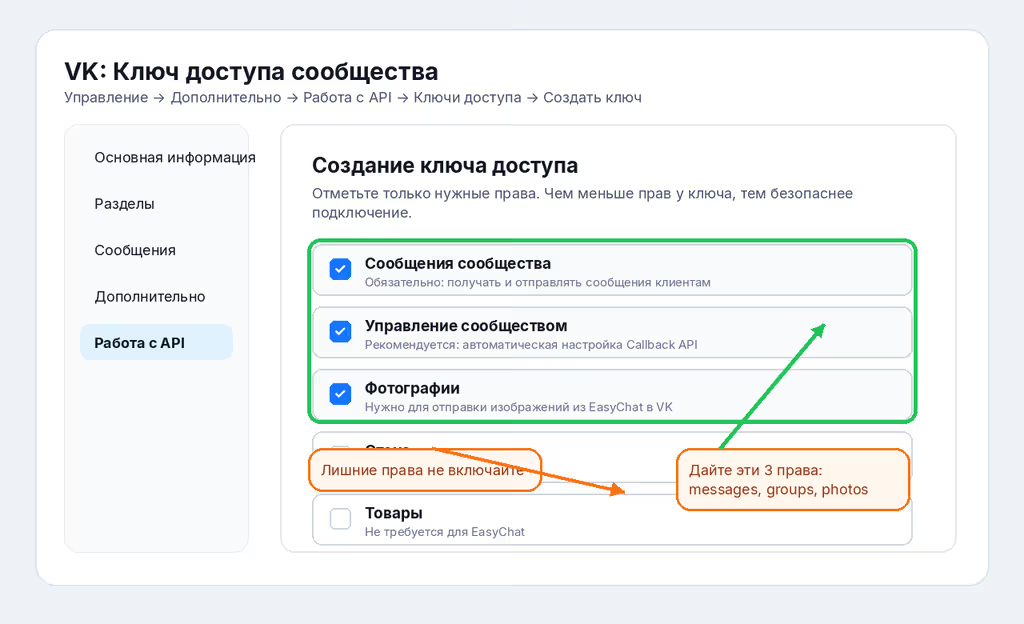
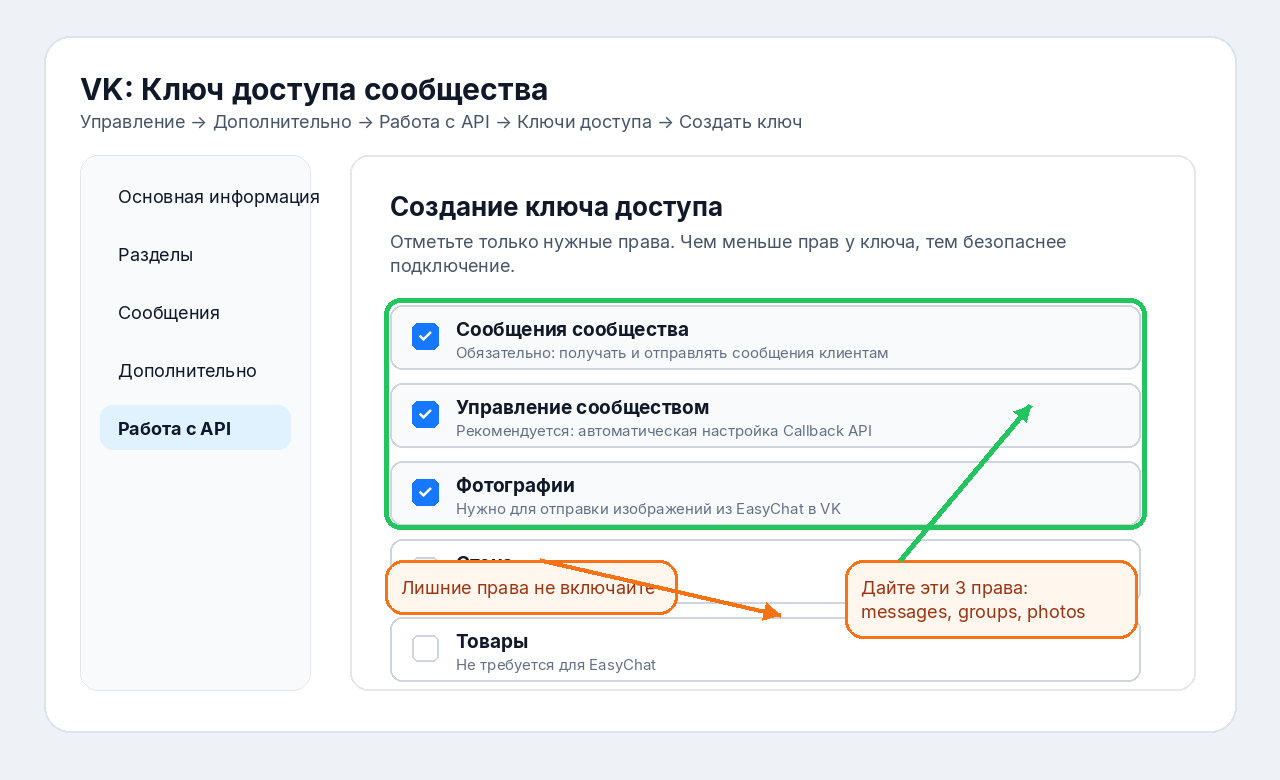
Extra rights for wall posts, ads, products and other sections are not needed.
Connect In EasyChat
Open EasyChat → Integrations → VK.
- Paste the community key.
- Wait for the check.
- Make sure the card shows Connected.
EasyChat prepares receiving community messages automatically. If VK did not respond temporarily, click Check and connect again.
Check The First Conversation
- Write to the VK community as a regular user.
- Open EasyChat.
- Check that a new conversation with the VK source appears.
- Reply from EasyChat.
- Make sure the user receives the reply in VK.
What Operators See
In a VK conversation, operators see customer messages, can reply with text and
send images or PDF/DOC/DOCX/ODT/ODS/ODP documents when the corresponding
rights were granted for the key.
Forwarded messages are displayed in full as well: EasyChat shows nested images and documents, the original message text and a subtle Forwarded marker. When VK allows the public sender name to be resolved, it is shown next to the marker automatically. If VK returns that context slightly later, the open conversation is enriched without requiring a page reload.
Links in messages are clickable and open in a new window.
Common Situations
- EasyChat says rights are missing. Create a new key and grant rights for messages, community management, photos and documents.
- The channel is connected, but messages do not arrive. Check that messages are enabled in the VK community and the website is available over HTTPS.
- Images or documents are not sent. Check that the key includes photo or document rights.
- The check is postponed. Wait a few minutes and click Check and connect again.
Quick Checklist
- The main cron runs every minute and the background task check passes.
- The community key is created.
- Only required rights are granted.
- The key is pasted into EasyChat.
- The connection status is green.
- A test message appeared in EasyChat.
- The operator sent a reply.